 TextEach
1. Create a group
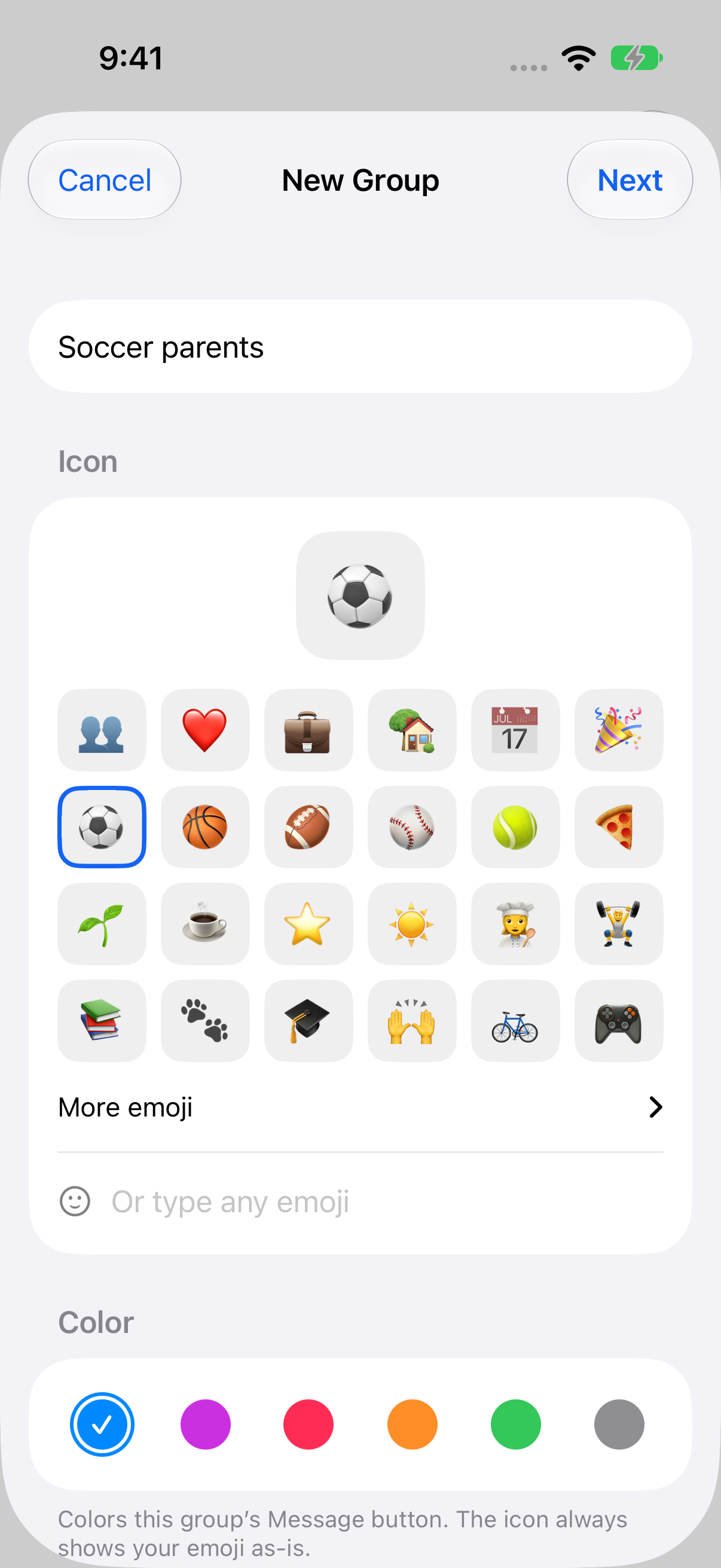
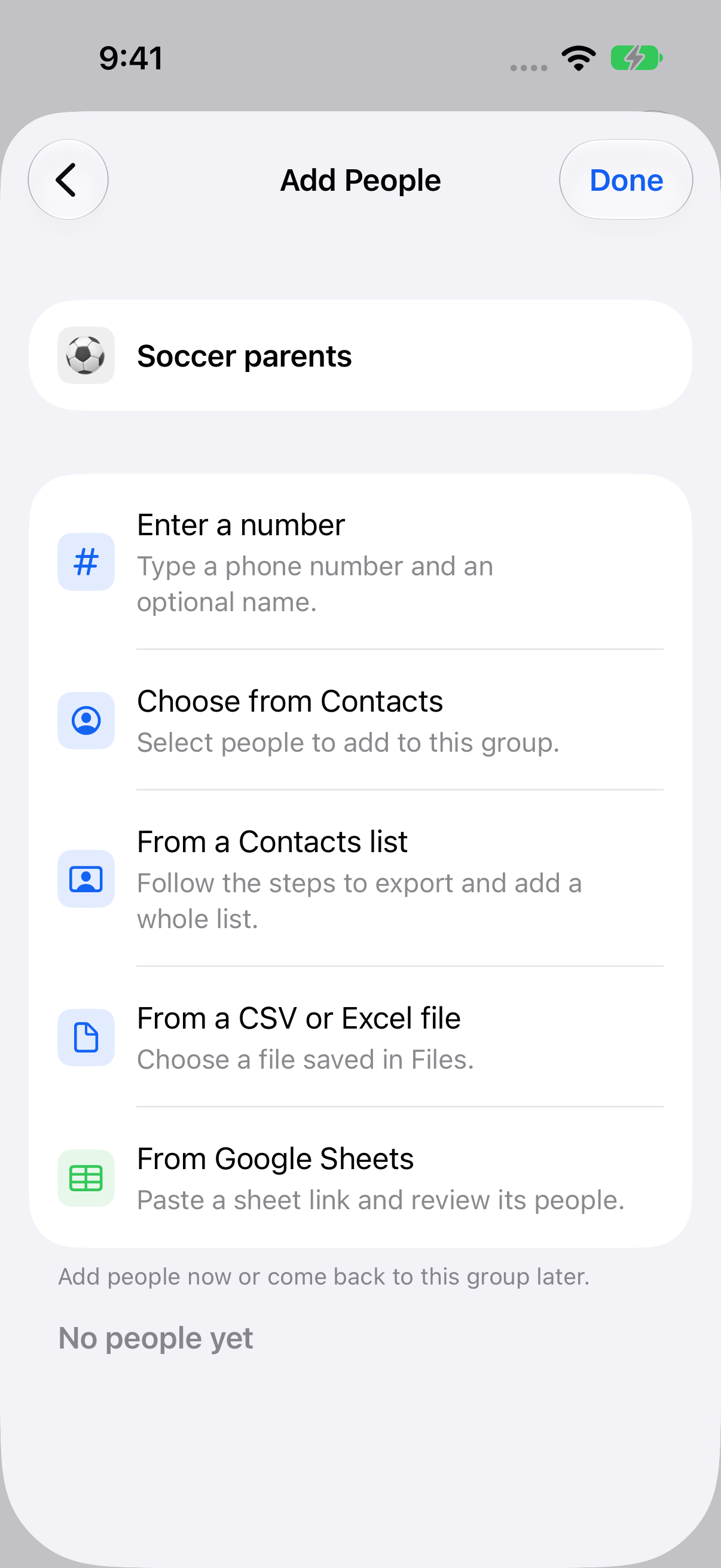
Open TextEach and tap Groups. Tap + or Create Group if this is your first group. Enter a name you’ll recognize, such as Soccer parents, and choose an emoji if you want one. Tap Next to open Add People.
2. Enter a name and phone number
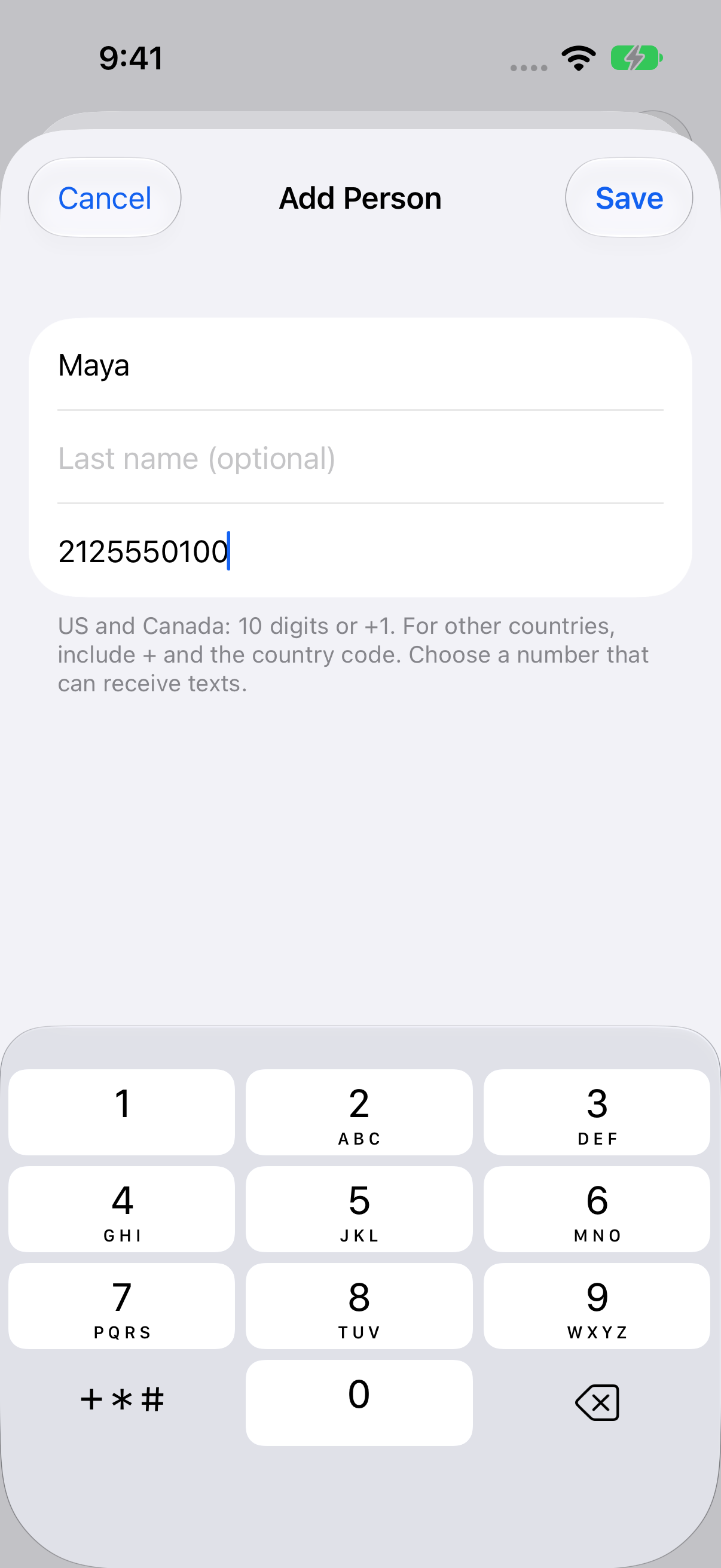
Tap Enter a number. Type a mobile number and, if you want to personalize texts later, add the person’s first or full name.
- For the US and Canada, enter 10 digits or use +1.
- In other countries, enter +, the country code, and the phone number.
- Use the number the person wants to receive texts on.
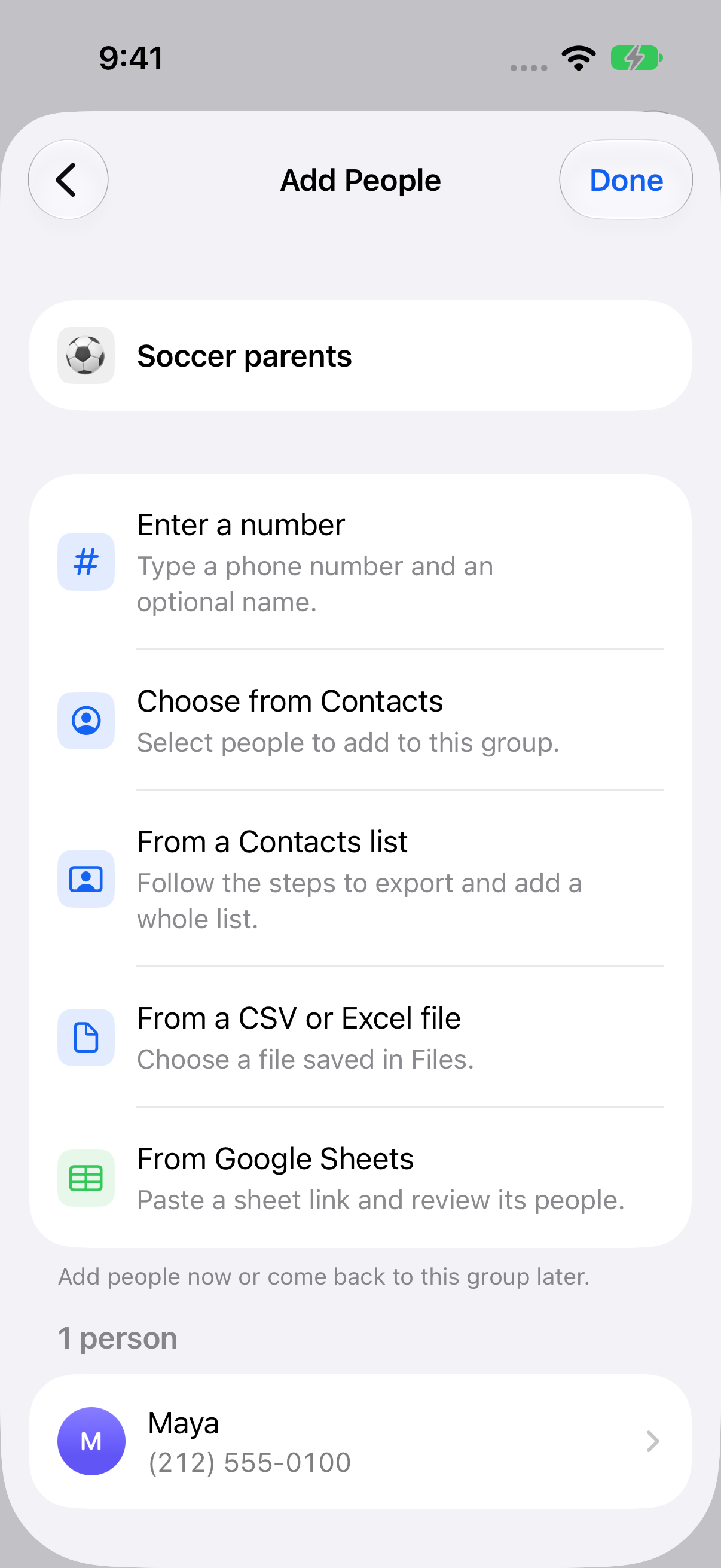
Tap Save. Check that the person appears in Add People, then tap Done when your group is ready.
3. Add or edit people later
Open the group in Groups any time. Tap Add people to add another number, pick from Contacts, or import a roster. To correct a number or name, tap the person and edit their details. Saved people can belong to several groups.
When you’re ready to write, tap the group’s message button. TextEach starts an individual conversation with each recipient when you send.
Still stuck? Contact TextEach Support.