 TextEach
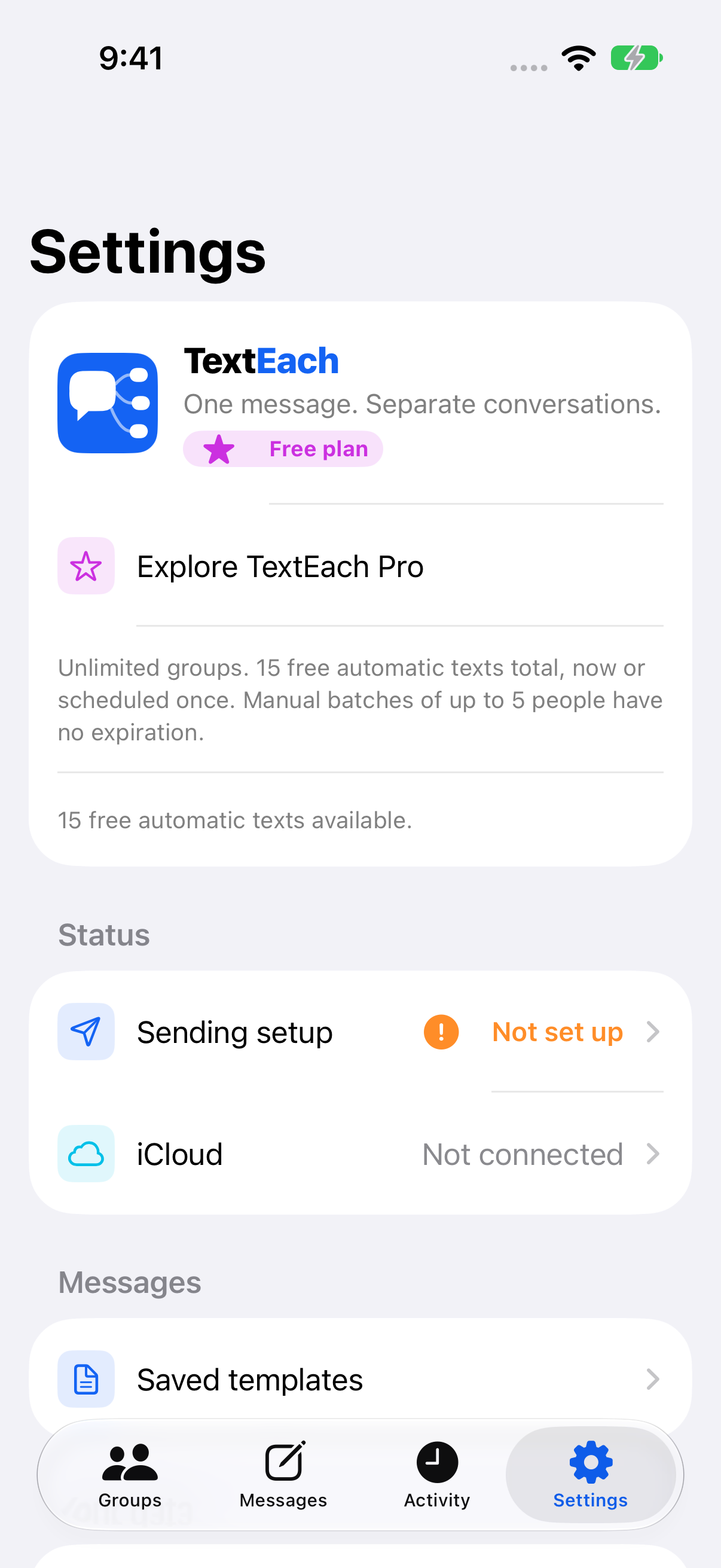
1. Open Saved templates
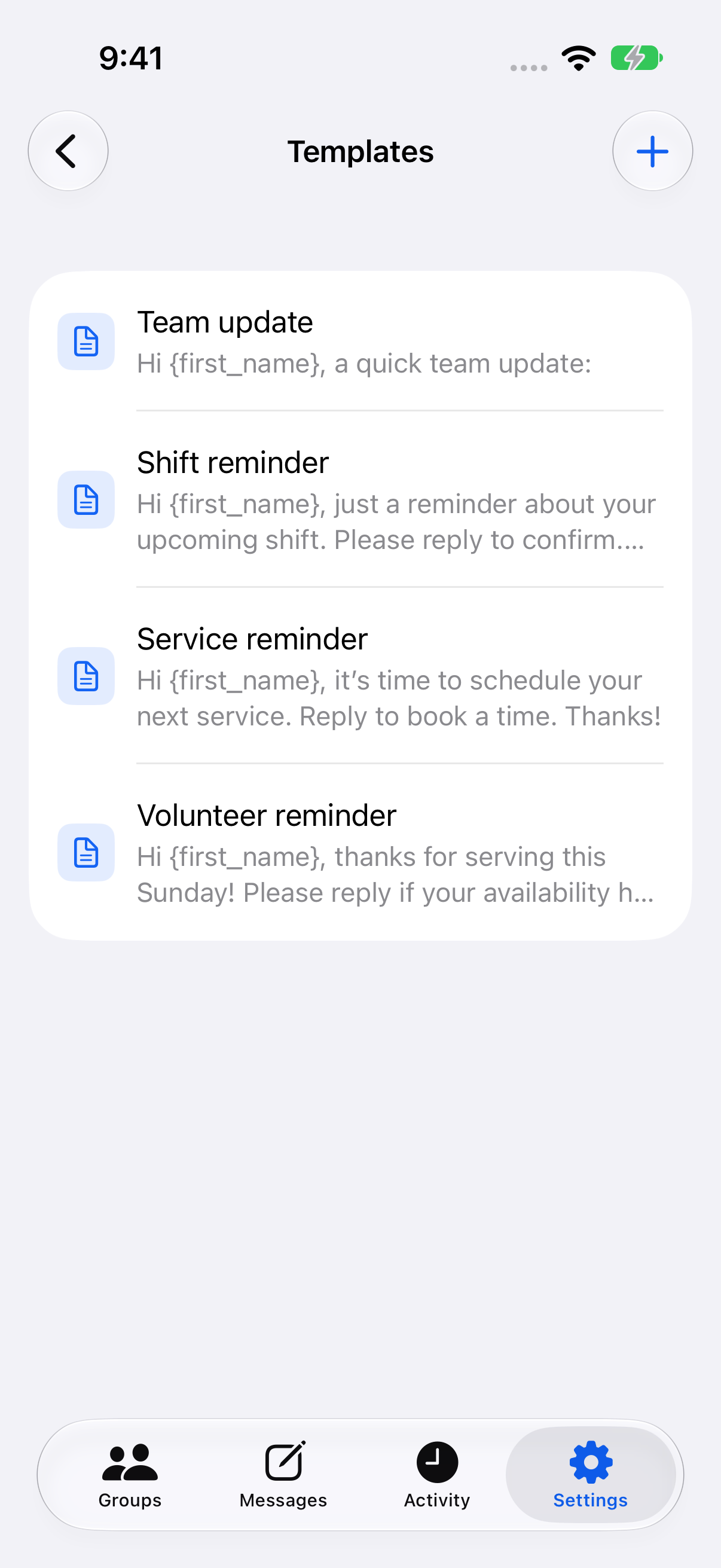
Open TextEach and tap Settings. Under Messages, tap Saved templates. In Templates, tap New template (the + button).
2. Write the template and add a name field
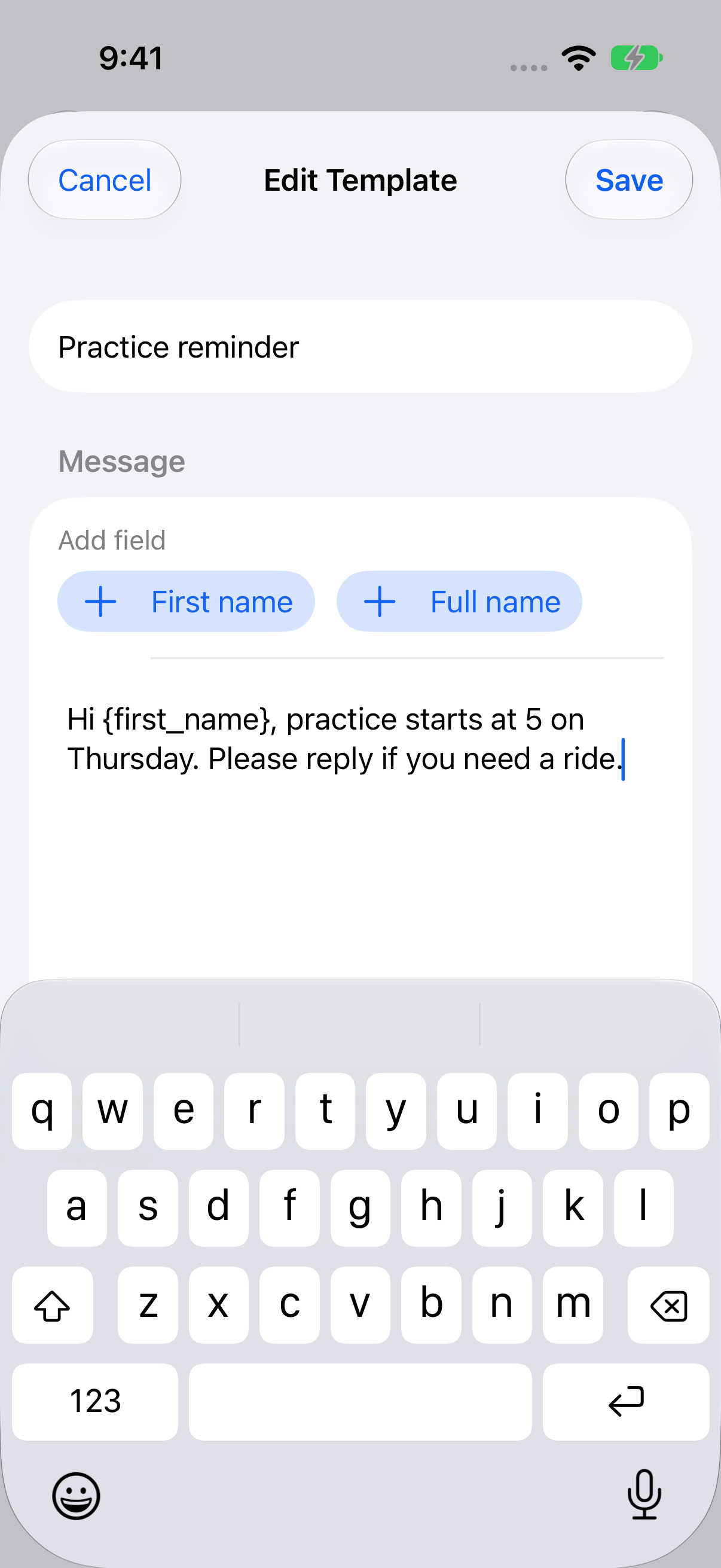
Enter a short name you’ll recognize when composing, such as Practice reminder. Write the part of the message you’ll use again. Tap First name or Full name in Add field to insert that information for each person. Save the template.
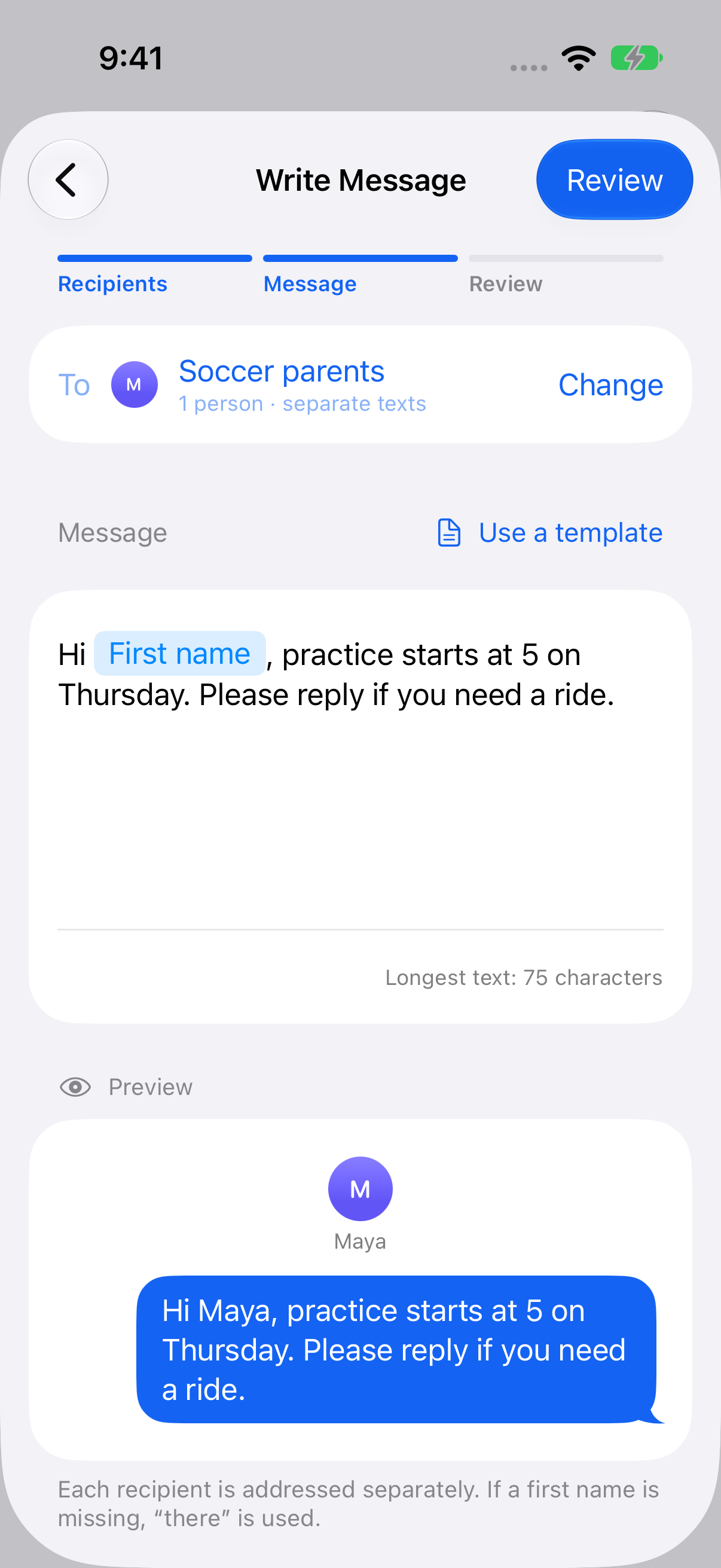
For example, type Hi, tap First name, then add your reminder. TextEach shows the named field in the draft and fills in the person’s name in the preview. When a first name is missing, the message uses “there.”
3. Apply the template to a group message
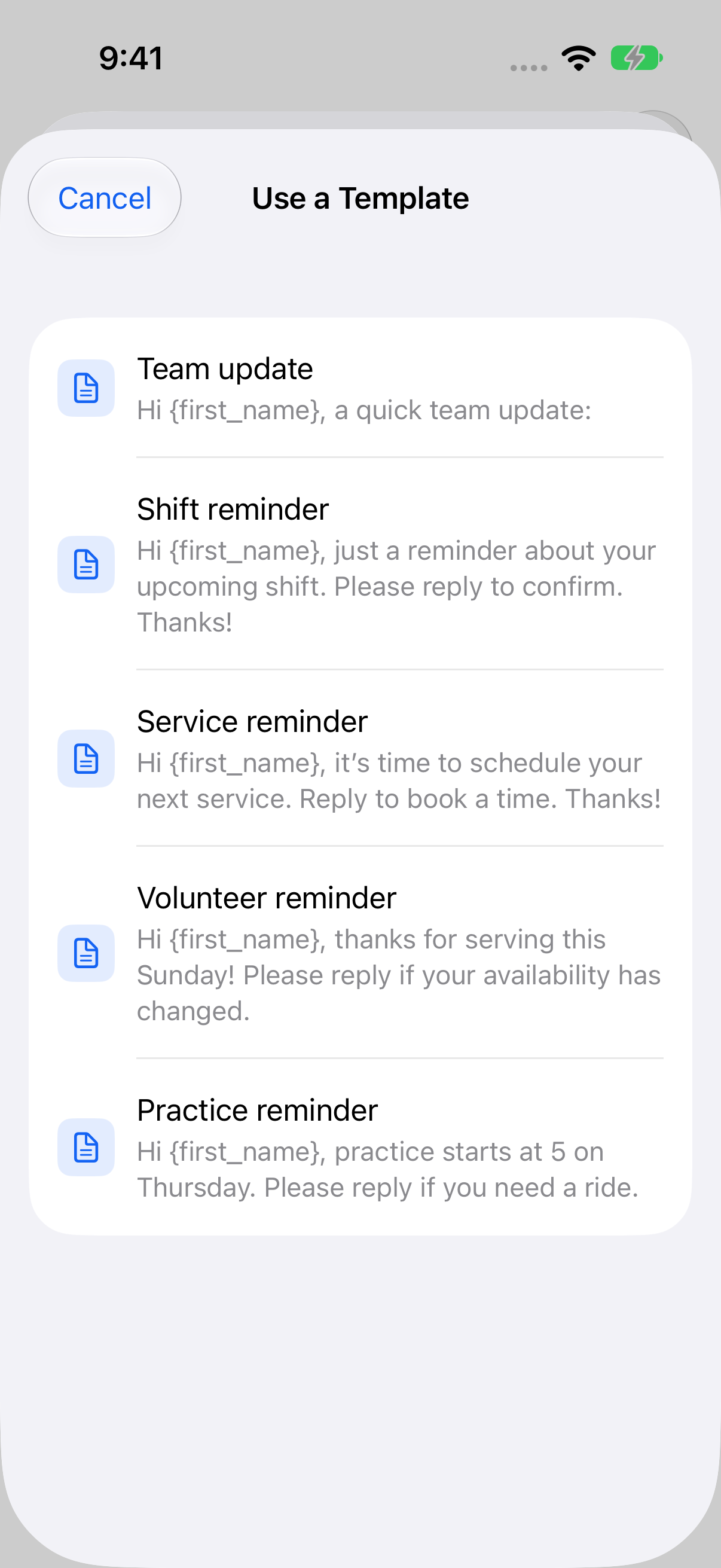
Open a saved group and start a message. On Write Message, tap Use a template and choose the saved template. Update details that change each time, such as the day, time, or location. Those draft edits leave your saved wording available for future messages.
4. Check what each person will receive
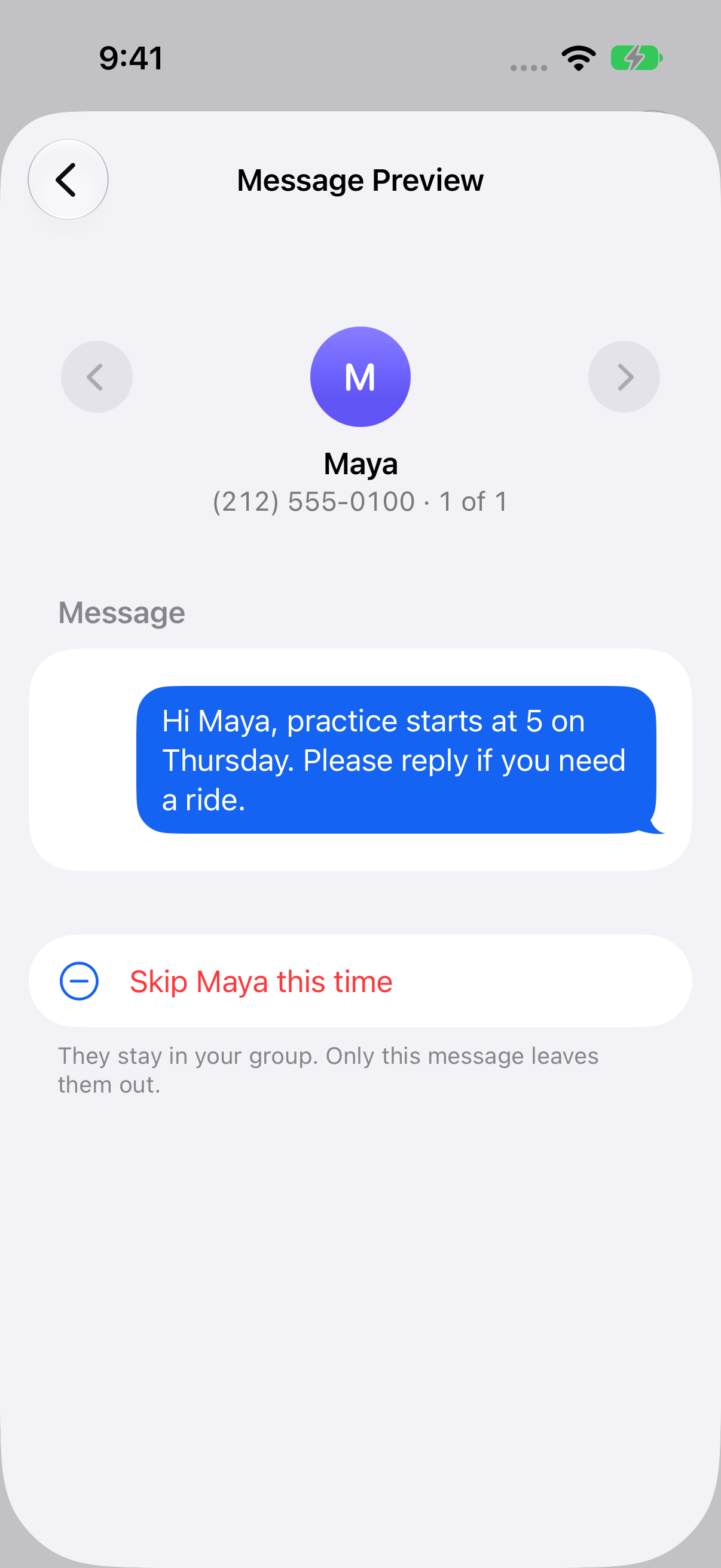
Tap Review and open a person’s row to see their exact text. Verify the name and any changed details before sending. A saved template is reusable wording. You choose when to send it.
Wording you can start with
- Practice change. Hi [First name], Thursday’s practice starts at 5. Please reply if you need a ride.
- Appointment reminder. Hi [First name], a quick reminder about your appointment tomorrow. Reply if you need to reschedule.
- Volunteer confirmation. Hi [First name], can you confirm your Saturday shift? Please reply when you get a chance.
Tap First name in TextEach where these examples say [First name]. To use details such as a different shift time for each person, insert a group message field in the draft.
Still stuck? Contact TextEach Support.