 TextEach
1. Open the group’s Add People screen
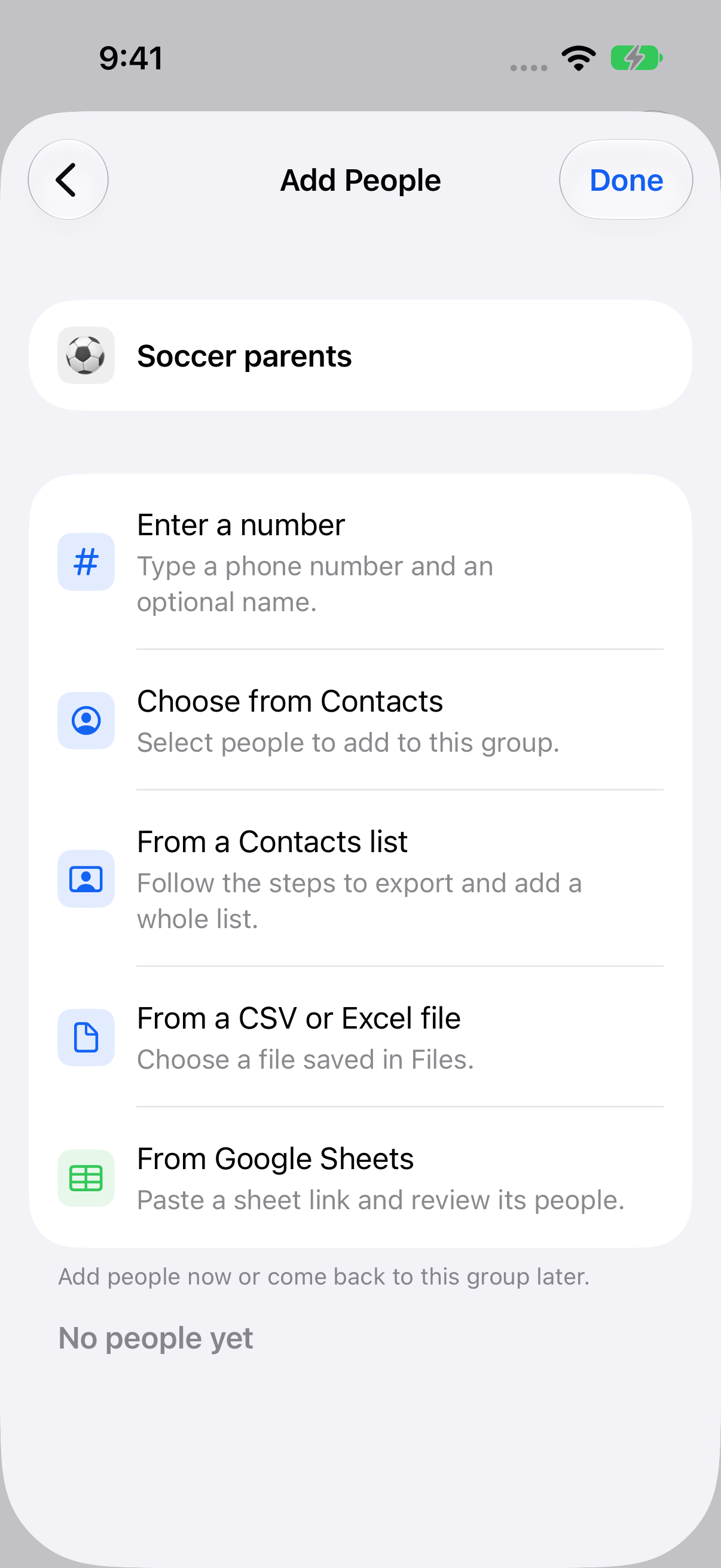
In TextEach, open Groups, select a group, and tap Add people. Tap Choose from Contacts to open Apple’s contact picker.
2. Select the people you want
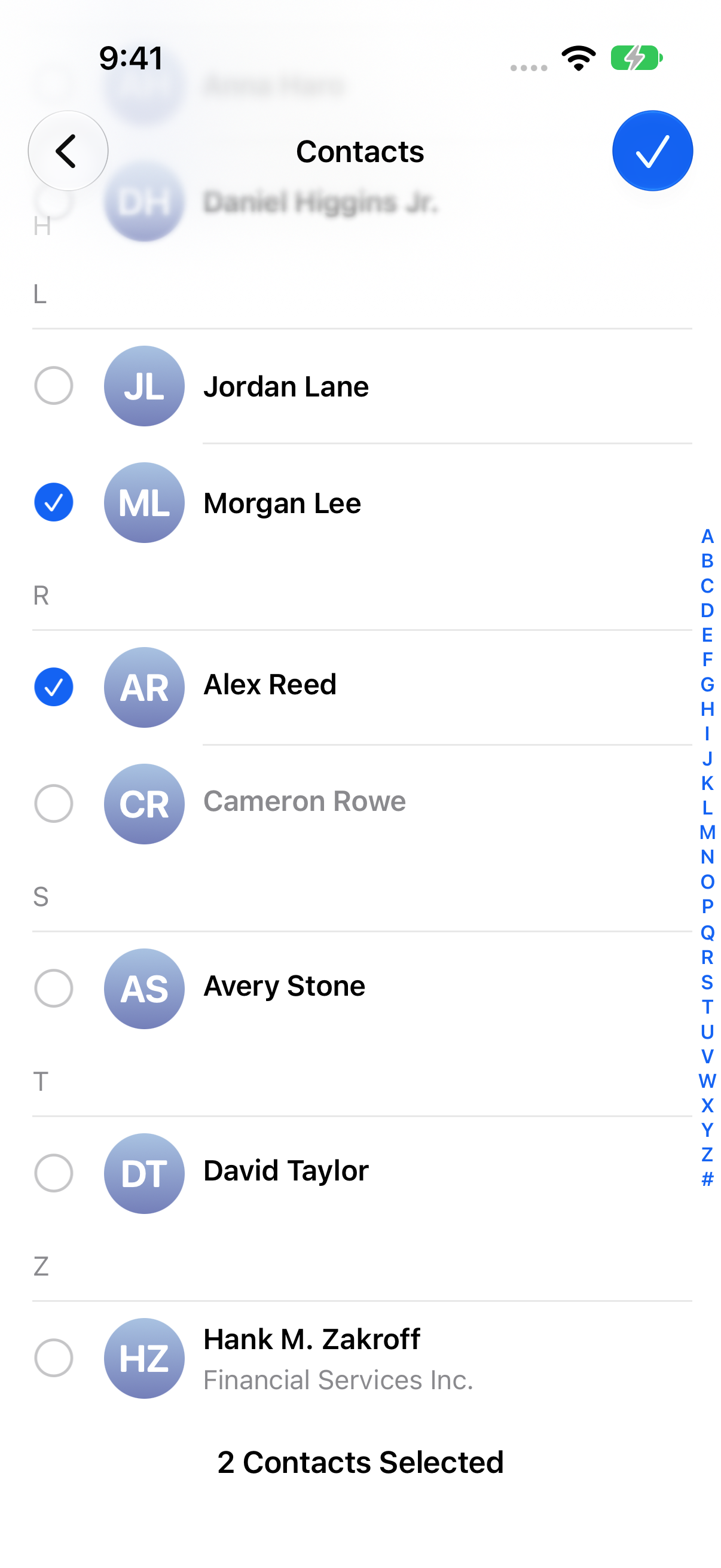
Search for a person by name or scroll through the picker. Tap each person you want, then tap Done. You can select several people in one visit.
On iOS 27, go back to Lists inside the picker to narrow the view to an existing Contacts list. Open that list and select the people you want. To bring over an entire list where supported, use the Contacts list import guide.
3. Check which number to use
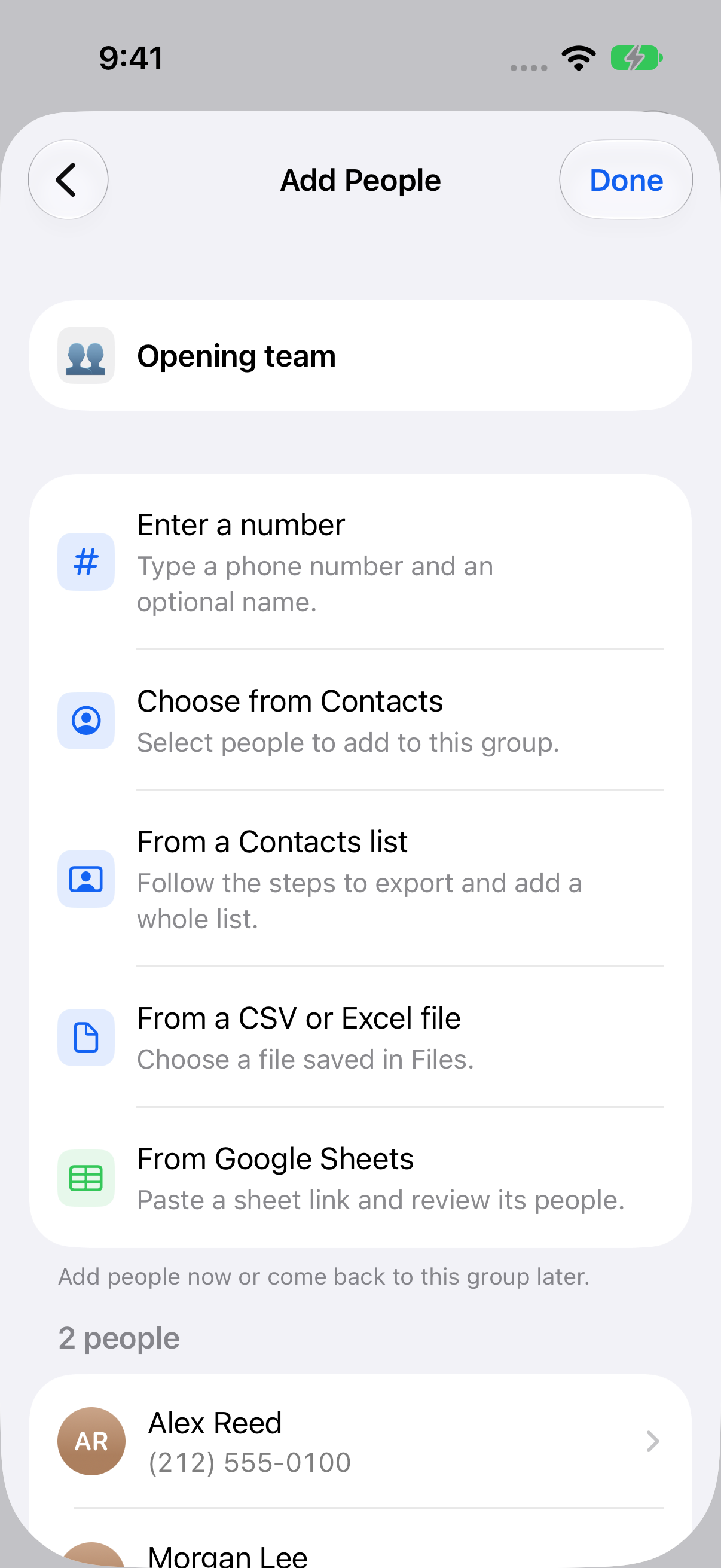
When everyone you pick has one usable number, TextEach adds them right away. If someone has multiple numbers, review the selection and choose one number per person. Skip anyone you don’t want to add.
Return to the group and check its member list. If the same number is already saved in TextEach, the group uses that saved person. The selection is a one-time copy of the people you chose.
If someone is missing
Check their card in Contacts for a number that can receive texts. If the number is stored under a different name, search for that name. You can also enter a number by hand.
Still stuck? Contact TextEach Support.