 TextEach
1. Prepare the CSV and save it to Files
Use one row per person and put your column headings in the first row. Include a phone column. Add separate first and last name columns if you want to personalize messages. Include the country code where needed and keep phone numbers as text so spreadsheet apps preserve the + or leading zeros.
A roster for a shift reminder might look like this:
First name,Last name,Phone,Shift time
Alex,Reed,2125550100,8:30 AM
Jordan,Chen,2125550101,9:00 AM
Export or download the .csv file to the iPhone Files app. You can keep the file in a private folder.
2. Choose the file inside TextEach
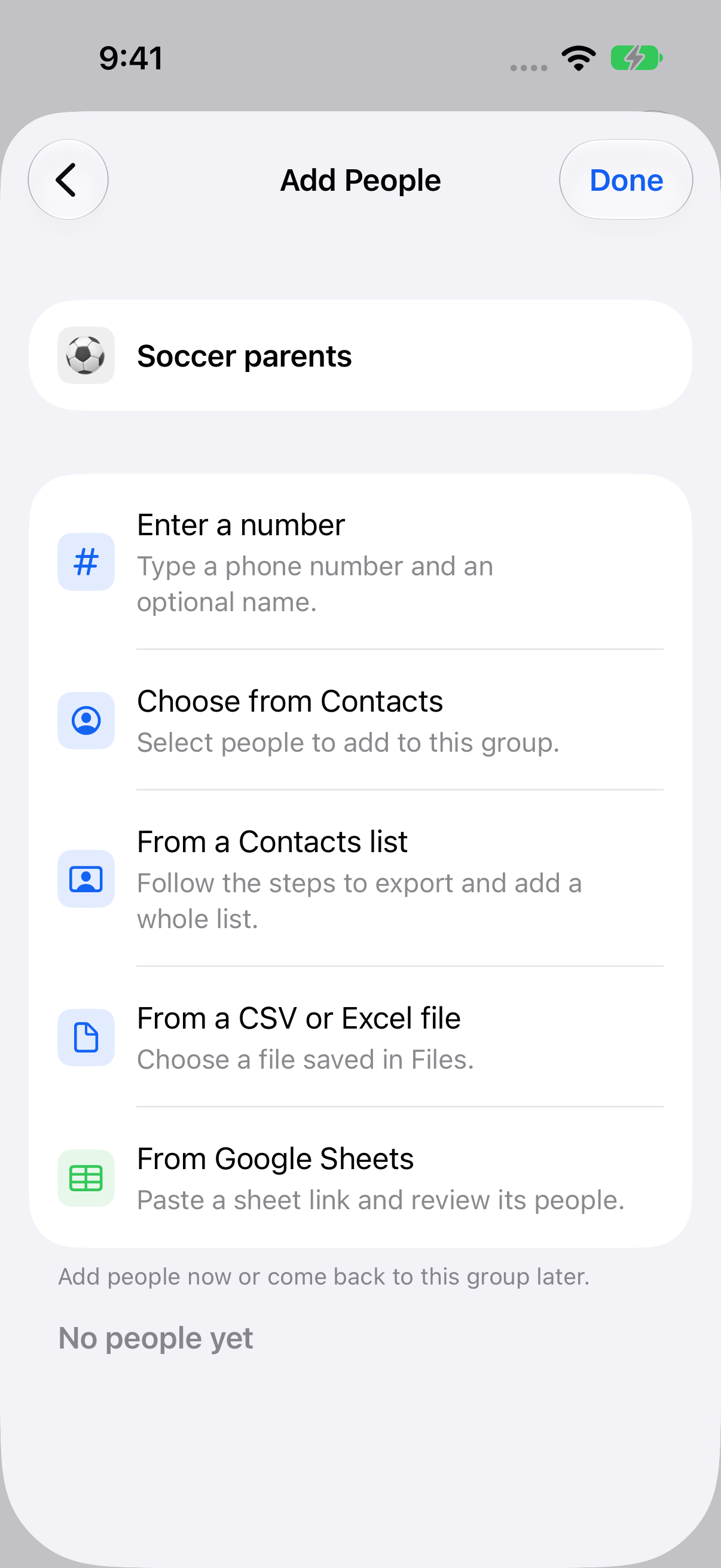
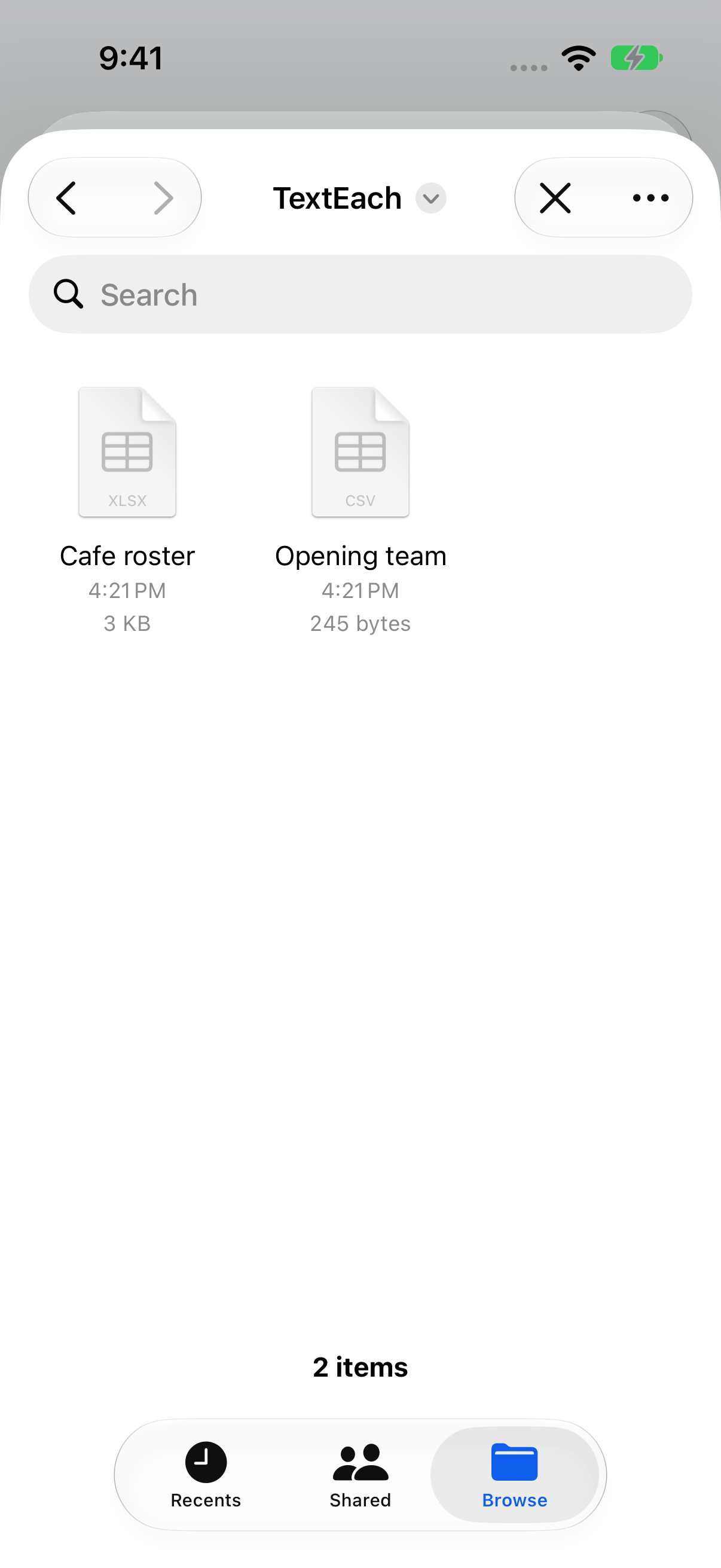
Open the destination group, tap Add people, then From a CSV or Excel file. Choose the CSV in Recents or tap Browse and find the folder where you saved it.
3. Match the columns
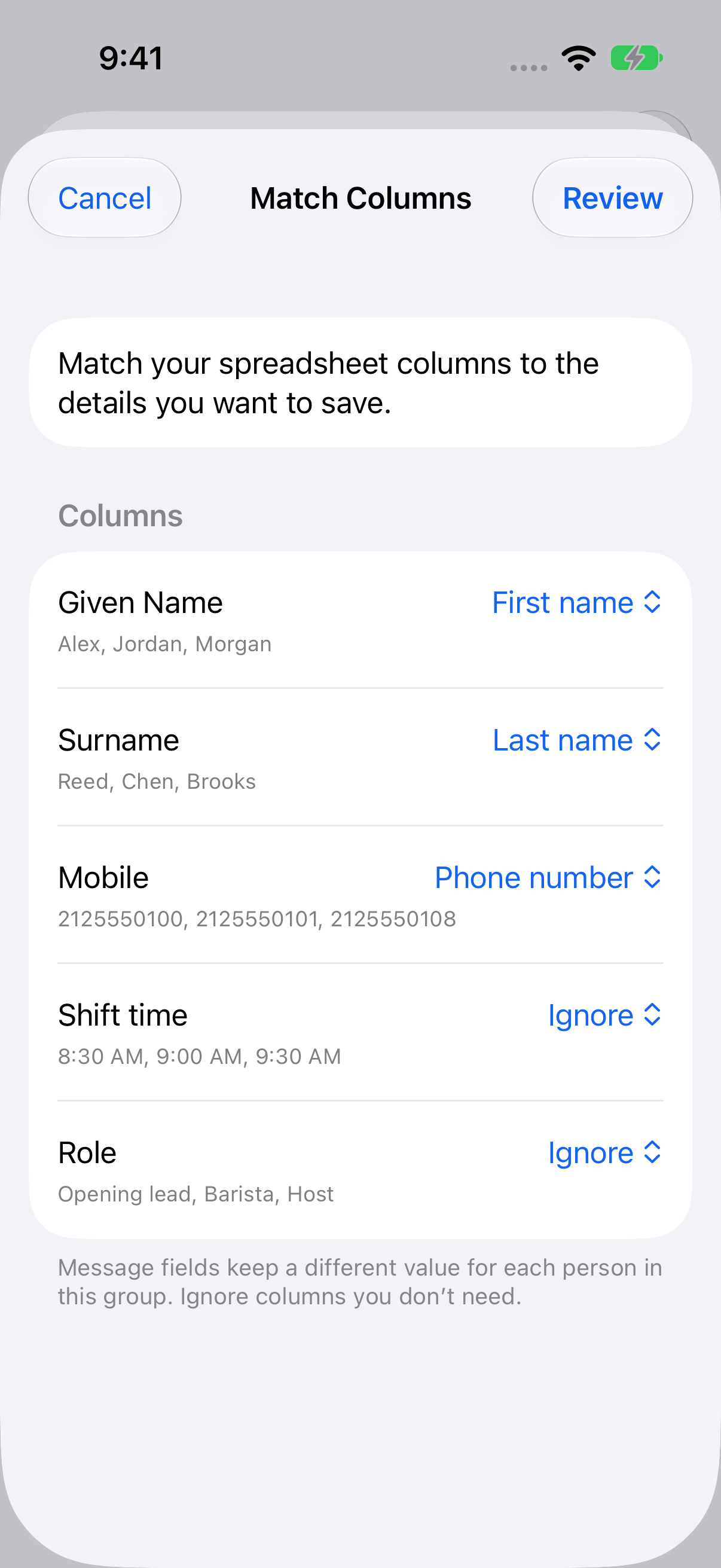
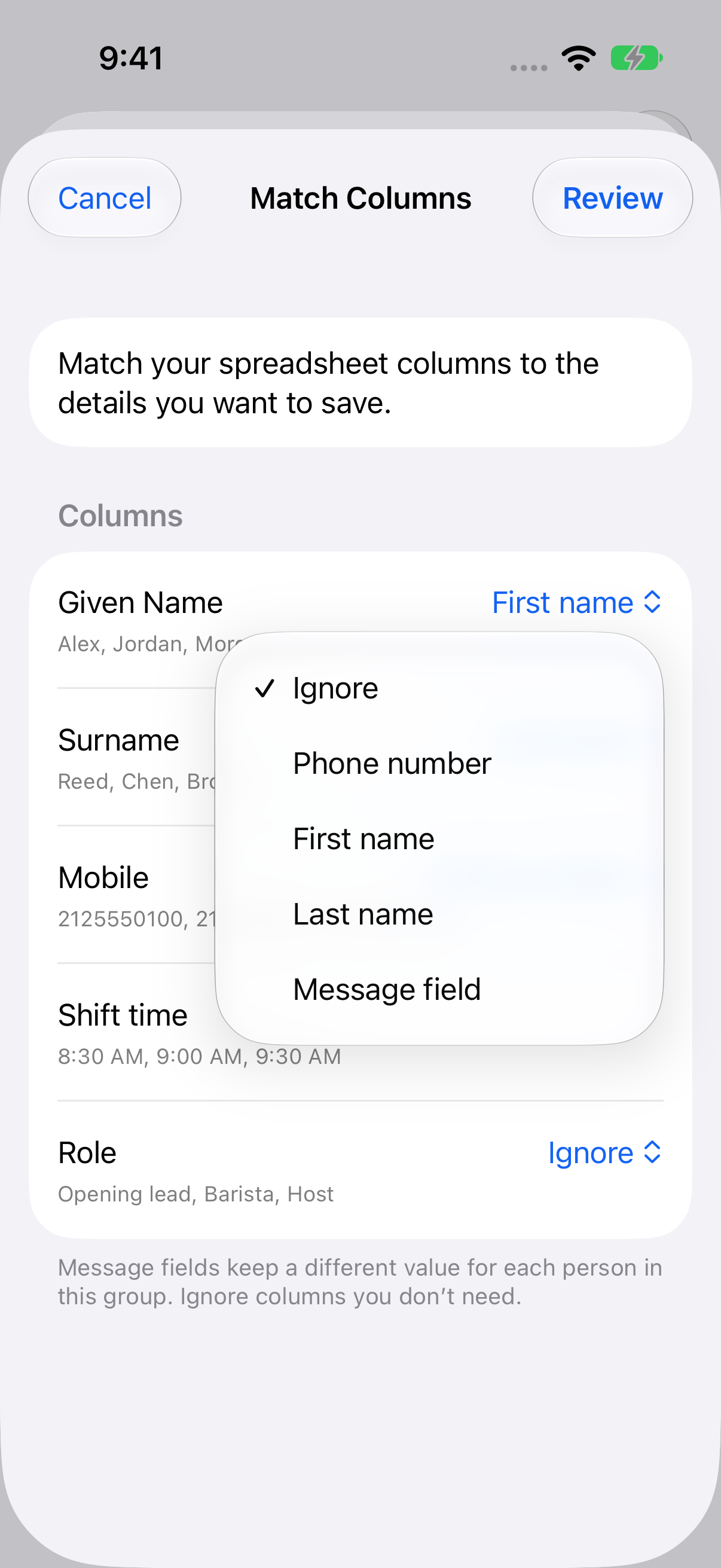
On Match Columns, verify that the phone column is assigned to Phone number and the name columns to First name and Last name. Open a column’s options to correct a match. Set a column such as Shift time to Message field if you want to insert its values into texts. Choose Ignore for columns you don’t need, then tap Review.
4. Review and import
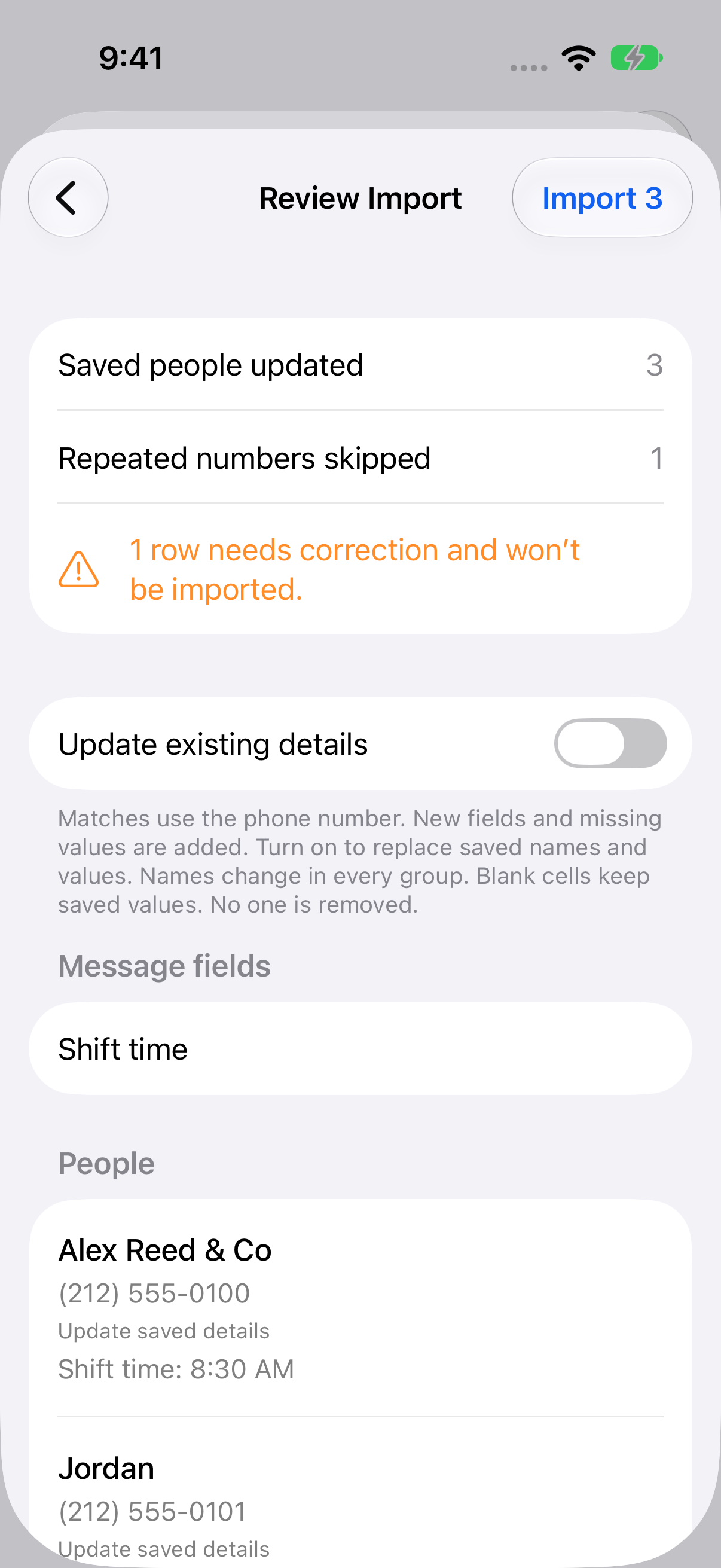
Check how many people will be added or updated, and look for skipped rows. Fix bad numbers in the original spreadsheet before importing those rows. When the review looks right, tap Import.
What happens if a number already exists?
TextEach matches people by phone number. Repeated numbers in the file are skipped. Update existing details replaces saved names and message-field values with the import’s nonblank values. A saved name change applies across that person’s groups. Leave the switch off to keep existing details and fill in missing ones.
Still stuck? Contact TextEach Support.