 TextEach
1. Prepare a detail for each person
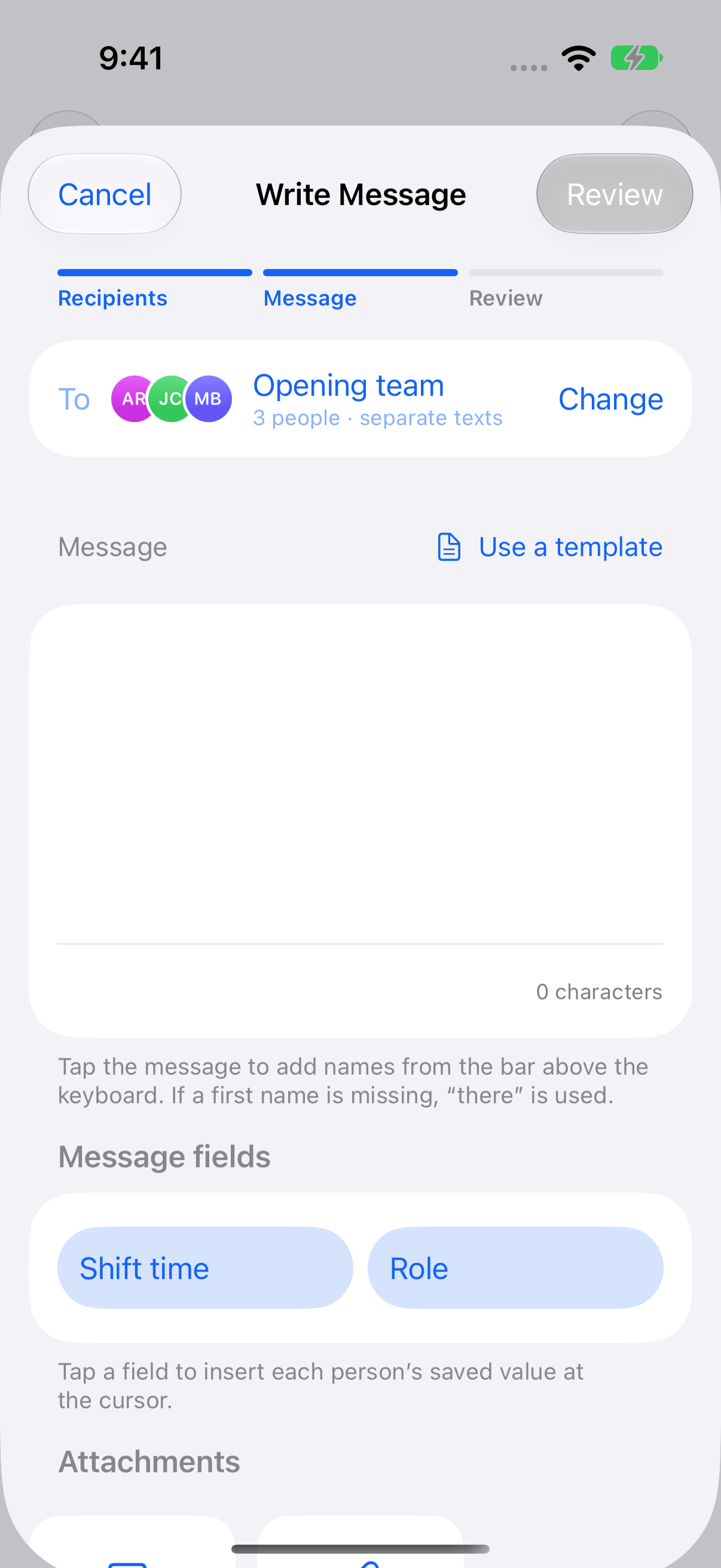
Use First name or Full name when a greeting is all you need. For a different detail in every recipient’s text, such as Shift time or Role, import it as a Message field when mapping a CSV roster, Excel workbook, or Google Sheet.
You can also open a group’s Message fields to add or edit the values saved for that group.
2. Insert a field where it belongs in the message
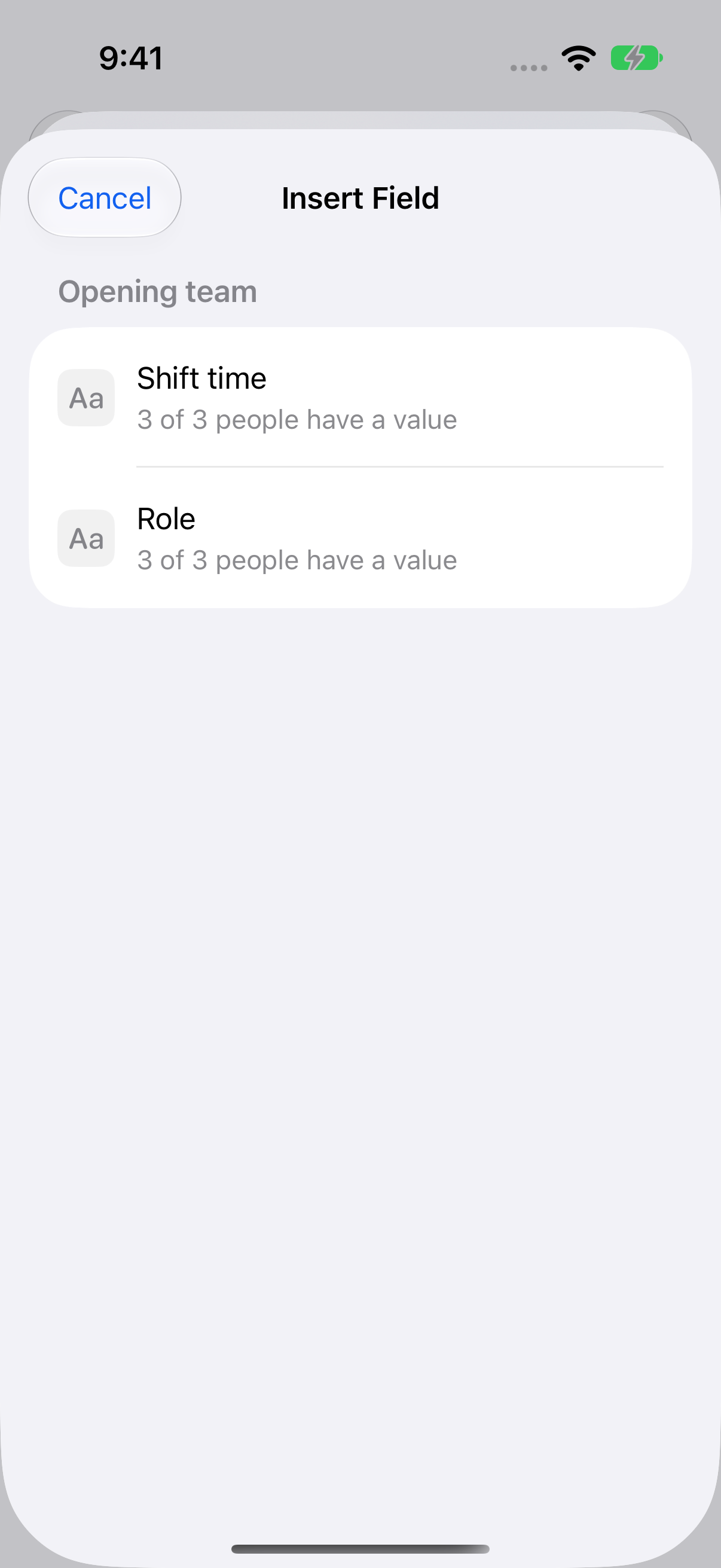
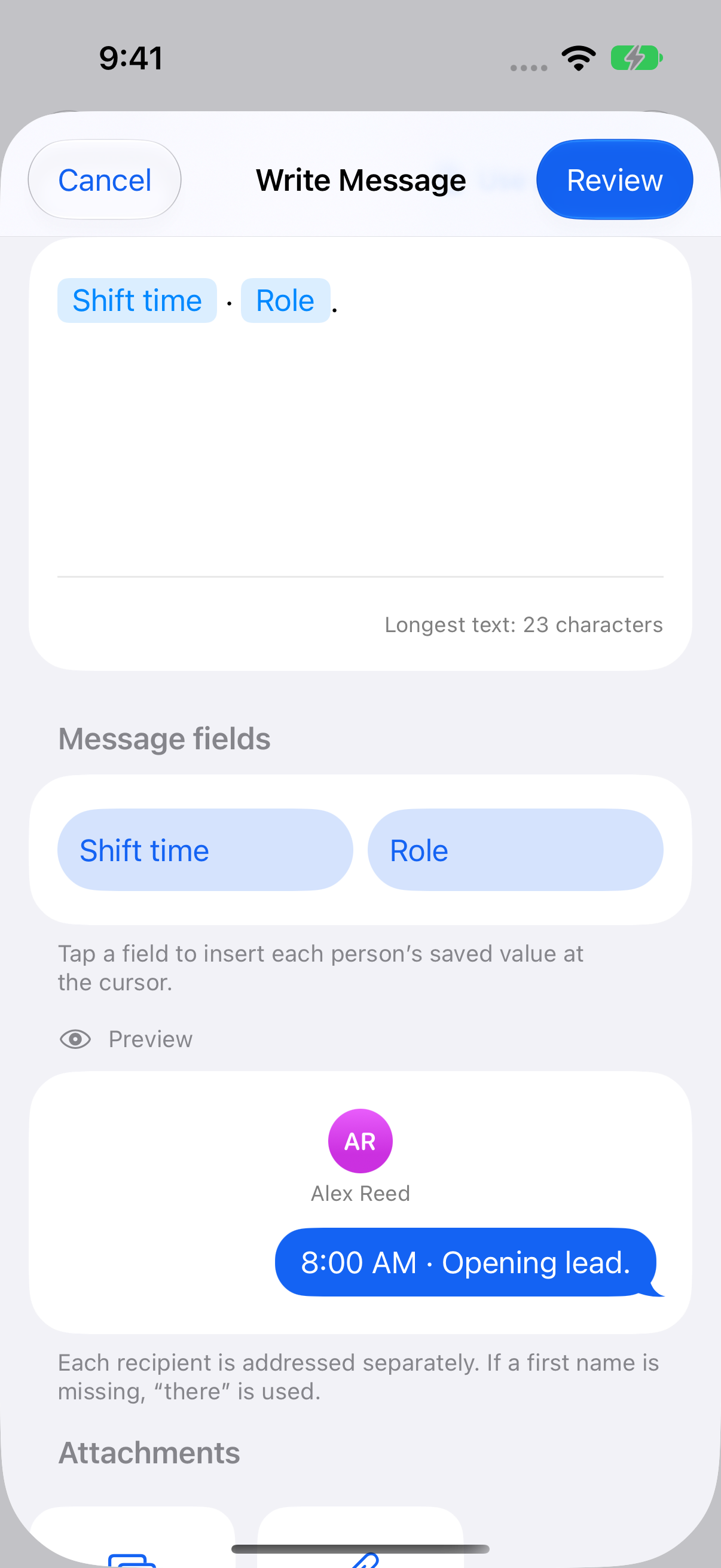
Open the group and start writing. Use First name or Full name in the keyboard bar for the greeting. For custom details, tap a named button under Message fields, or tap Insert field above the keyboard and choose the field. A named chip appears where the value will go.
3. Review the personalized result
Tap Review, then tap a person to read their exact text. Use the previous and next controls to check other people. For a shift reminder, one person’s preview might say 8:00 AM while another’s says 9:30 AM.
If a field is missing
Review flags recipients who have no value for a required field. Fill in the value in the group, change the message, or leave that person out for this send. A missing first name has a fallback of “there.” A missing custom value needs attention before you can send.
Still stuck? Contact TextEach Support.