 TextEach
1. Set up the sheet
Keep one person per row and put headings in the first row. Use First name, Last name, and Phone to make the columns easy to recognize. Put optional fields such as Jersey in separate columns.
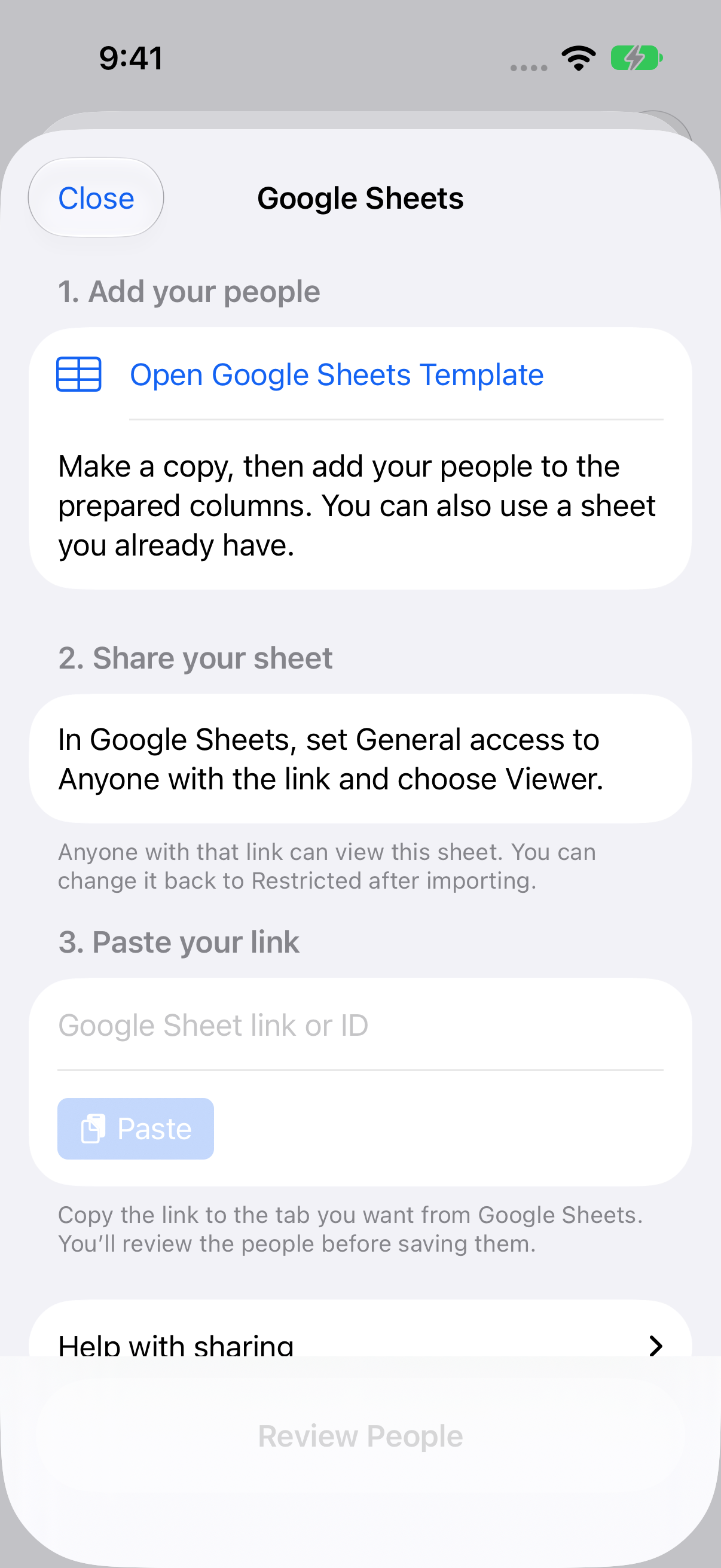
In TextEach, open the destination group and tap Add people → From Google Sheets. Tap Open Google Sheets Template if you want a blank roster to copy. In Google Sheets, choose Make a copy and fill in the sheet in your own account. You can also use a sheet you already have.
2. Set Viewer access and copy the link
In Google Sheets, open Share. Under General access, choose Anyone with the link → Viewer and copy the link from the roster tab you want to import.
Anyone who has the link can view the sheet while that setting is on. If you want to keep the roster restricted or your organization blocks link sharing, save an Excel copy or export a CSV and import that file from Files.
3. Paste the link and open the review
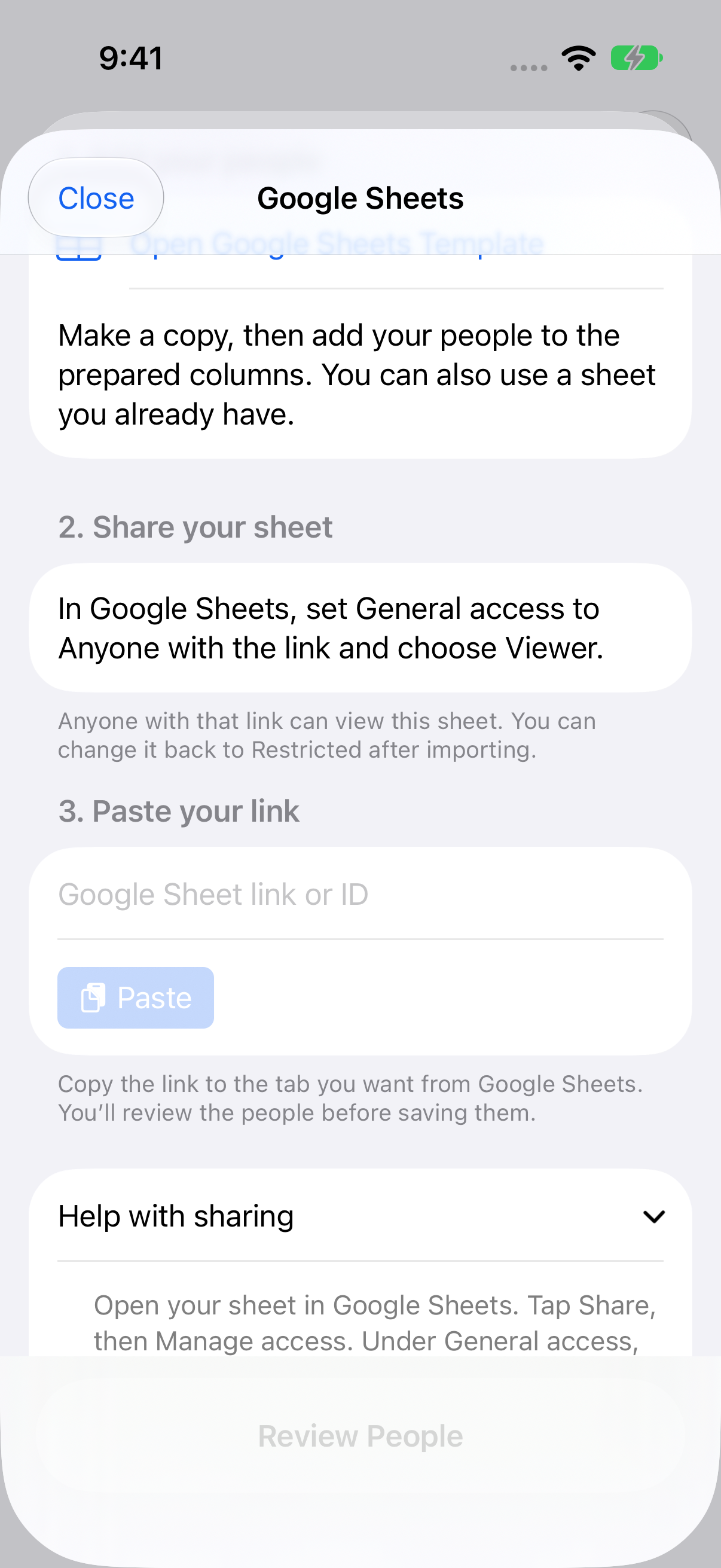
Return to TextEach, tap Paste, then Review People. A link to a specific tab imports that tab. If you paste only the spreadsheet ID, TextEach uses the first tab.
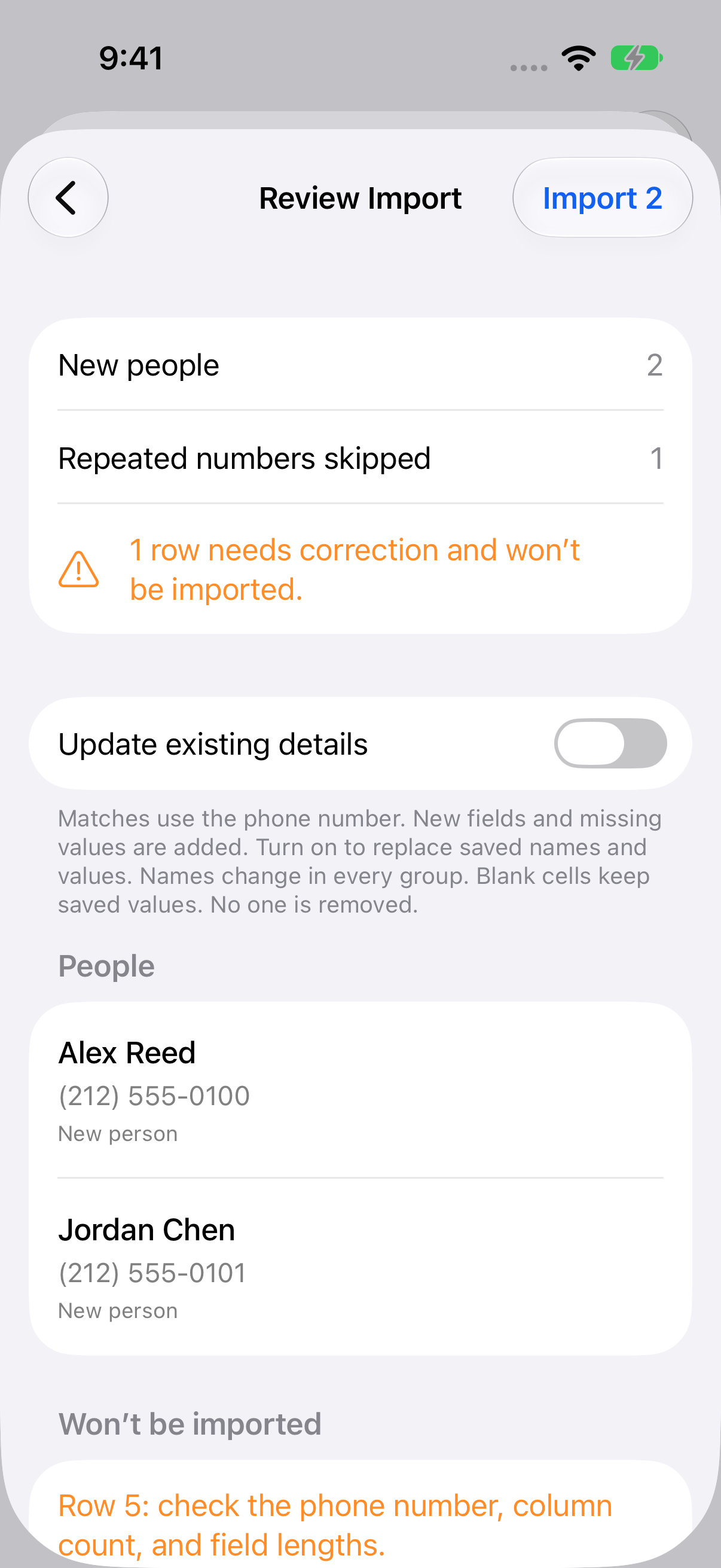
When TextEach recognizes the names and phone column, it opens Review Import. Extra or unclear columns open Match Columns first. Set the phone column to Phone number and choose which extra fields to keep.
4. Import and check the group
Tap Import, then check the group for the added people. If you only opened link access for this import, return the sheet to Restricted. TextEach reads the sheet when you request the import and saves the people you approve. Later changes to the spreadsheet don’t sync back to the group.
If the link won’t open
Check that the link is for Google Sheets and that opening it while signed out lets someone view the sheet. Ask the owner for permission if you can’t change sharing. A downloaded Excel or CSV file works with the same column matching and review. Google’s guide to sharing access
Still stuck? Contact TextEach Support.