 TextEach
1. Set up the worksheet and save an .xlsx copy
In Excel, put headings in the first row of the worksheet containing the roster. Use one person per row and give phone numbers their own column. Format that column as Text before entering numbers, so Excel keeps the plus sign and leading zeros. Save a copy as Excel Workbook (.xlsx) in the iPhone Files app.
If the workbook is in the older .xls format, save an .xlsx copy or export a CSV.
2. Open the workbook in TextEach
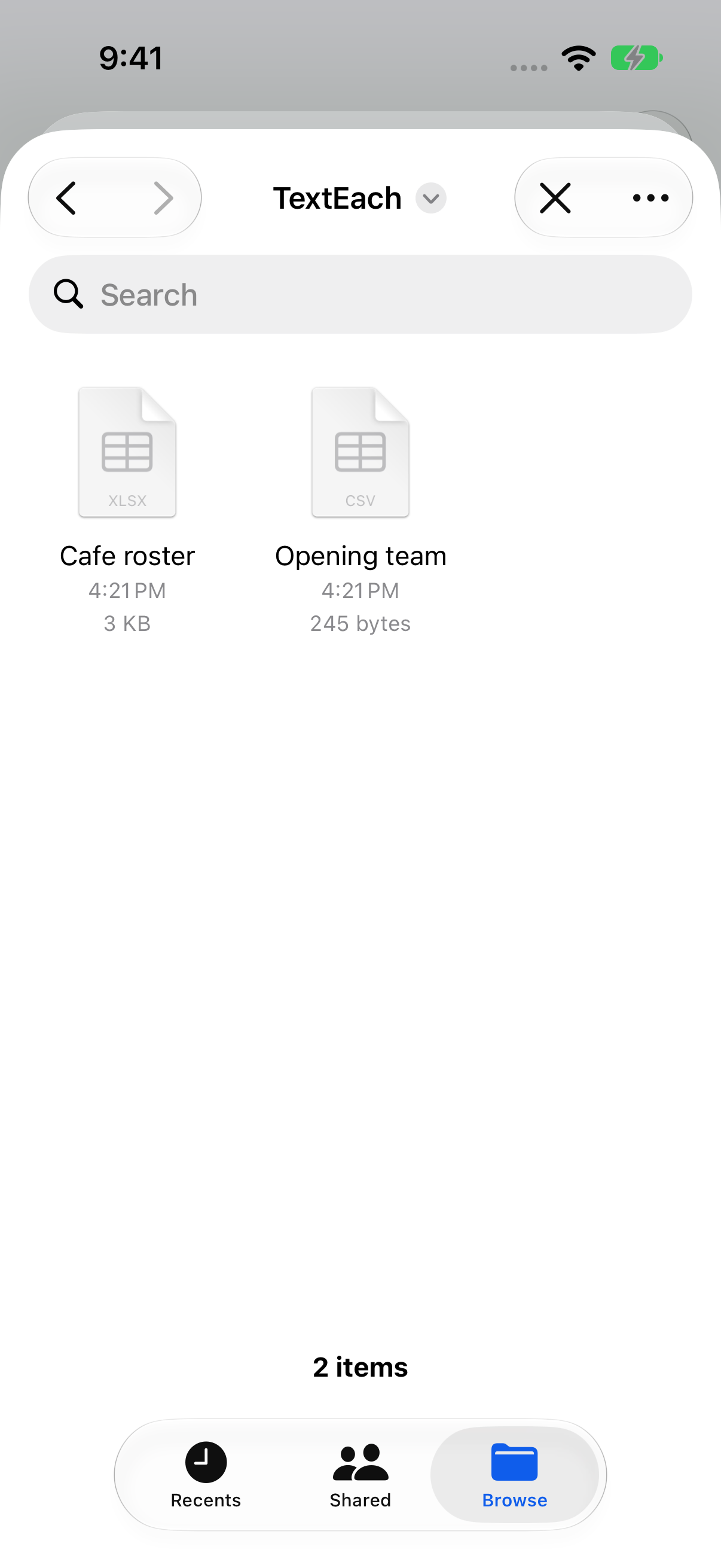
From Groups, select the destination group. Tap Add people → From a CSV or Excel file, then find the workbook in Files. Use Browse to reach a different folder.
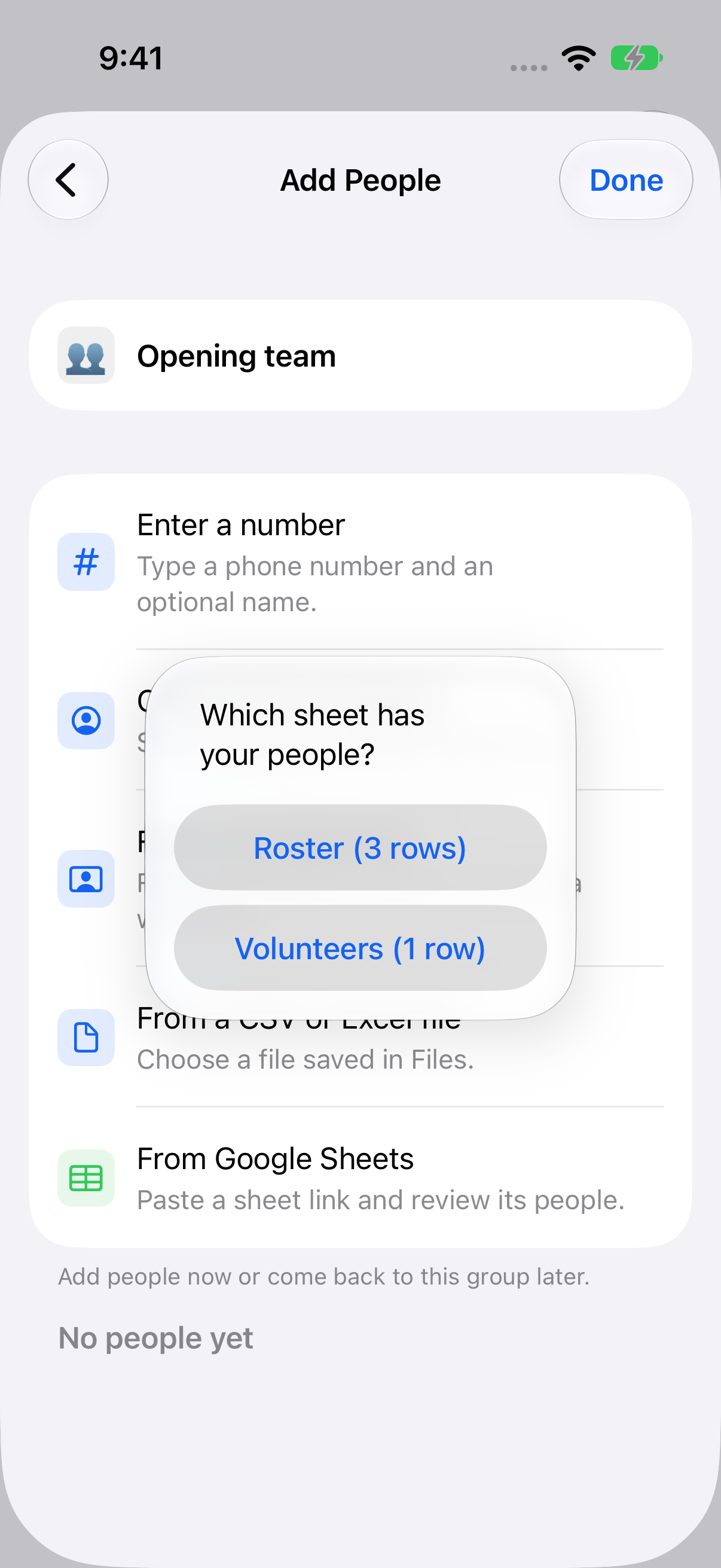
If TextEach finds more than one worksheet it can import, it asks Which sheet has your people? Tap the worksheet with the intended roster. If there’s only one usable worksheet, TextEach opens it directly.
3. Map columns, review, and save
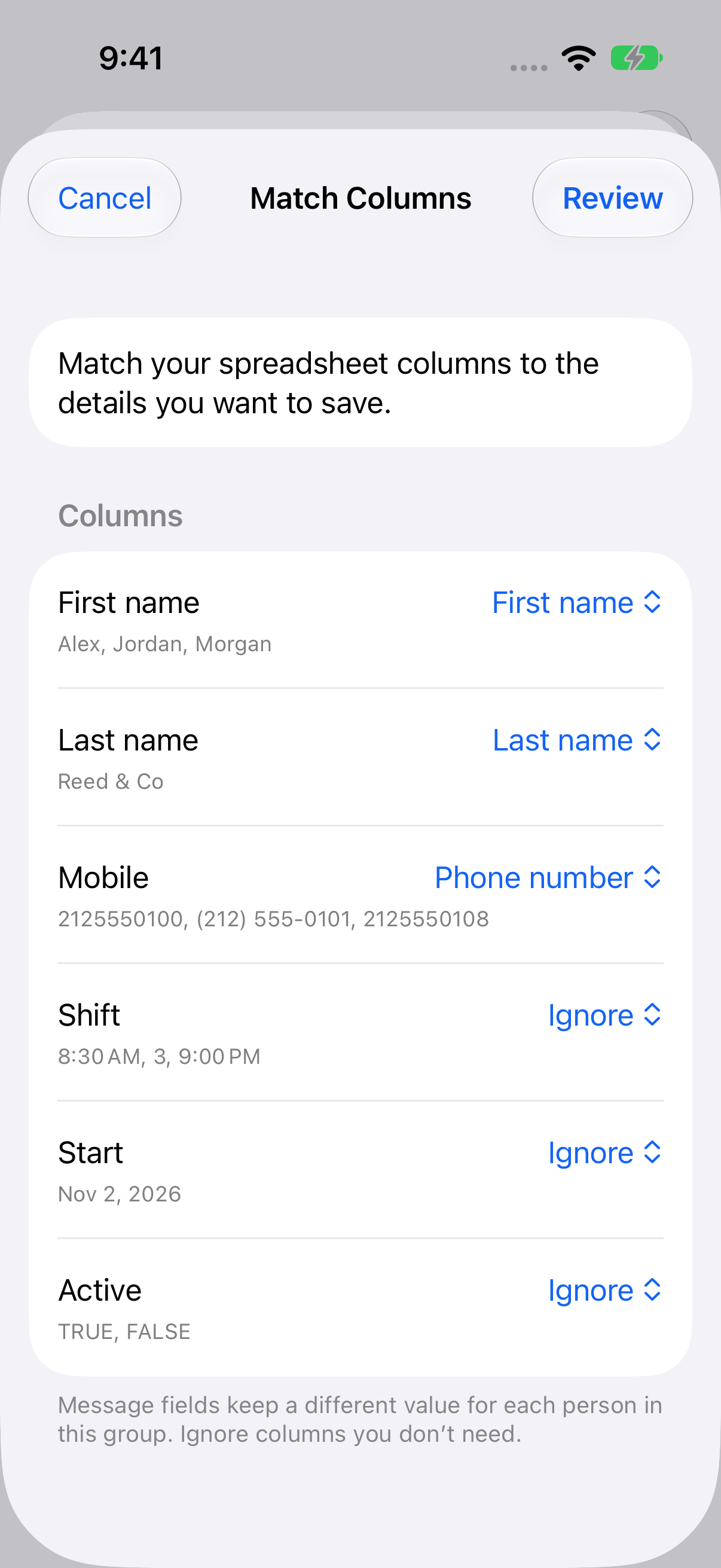
On Match Columns, check the Phone number, First name, and Last name assignments. To use something like Shift in a text, assign that column to Message field. Choose Ignore for unwanted extras. Tap Review.
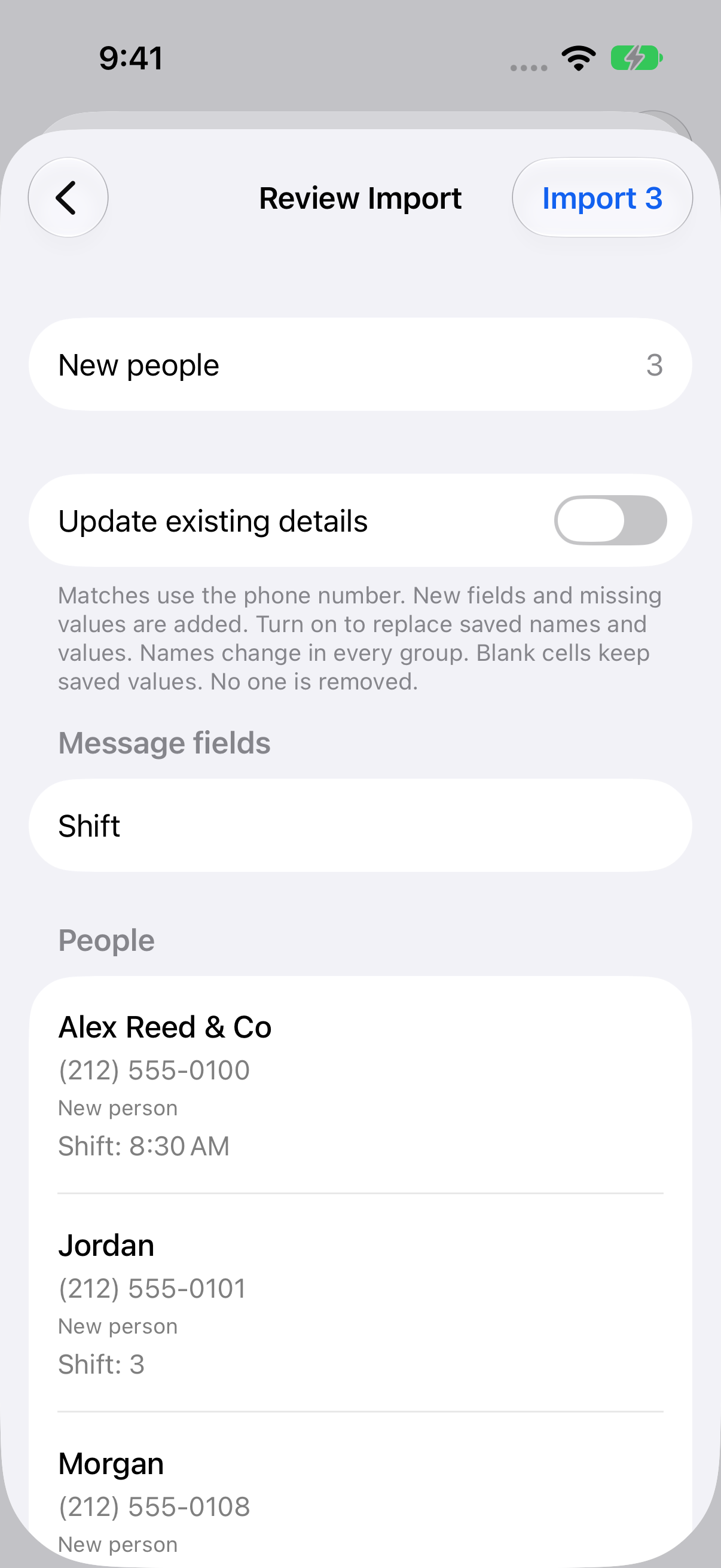
Check the people and skipped rows in Review Import. If you chose the wrong worksheet, cancel and choose the workbook again. Tap Import to save the right roster.
If TextEach doesn’t see your roster
Save the workbook to Files if it only exists as an email attachment or in another app. Use a visible worksheet with clear headings and a phone column. If you just need one worksheet and Excel export is giving you trouble, save that worksheet as a CSV and import it instead.
Still stuck? Contact TextEach Support.