 TextEach
To bring over an entire list, start in the iPhone Contacts app. If the list import options are unavailable, you can pick individual contacts instead.
1. Export the list from iPhone Contacts
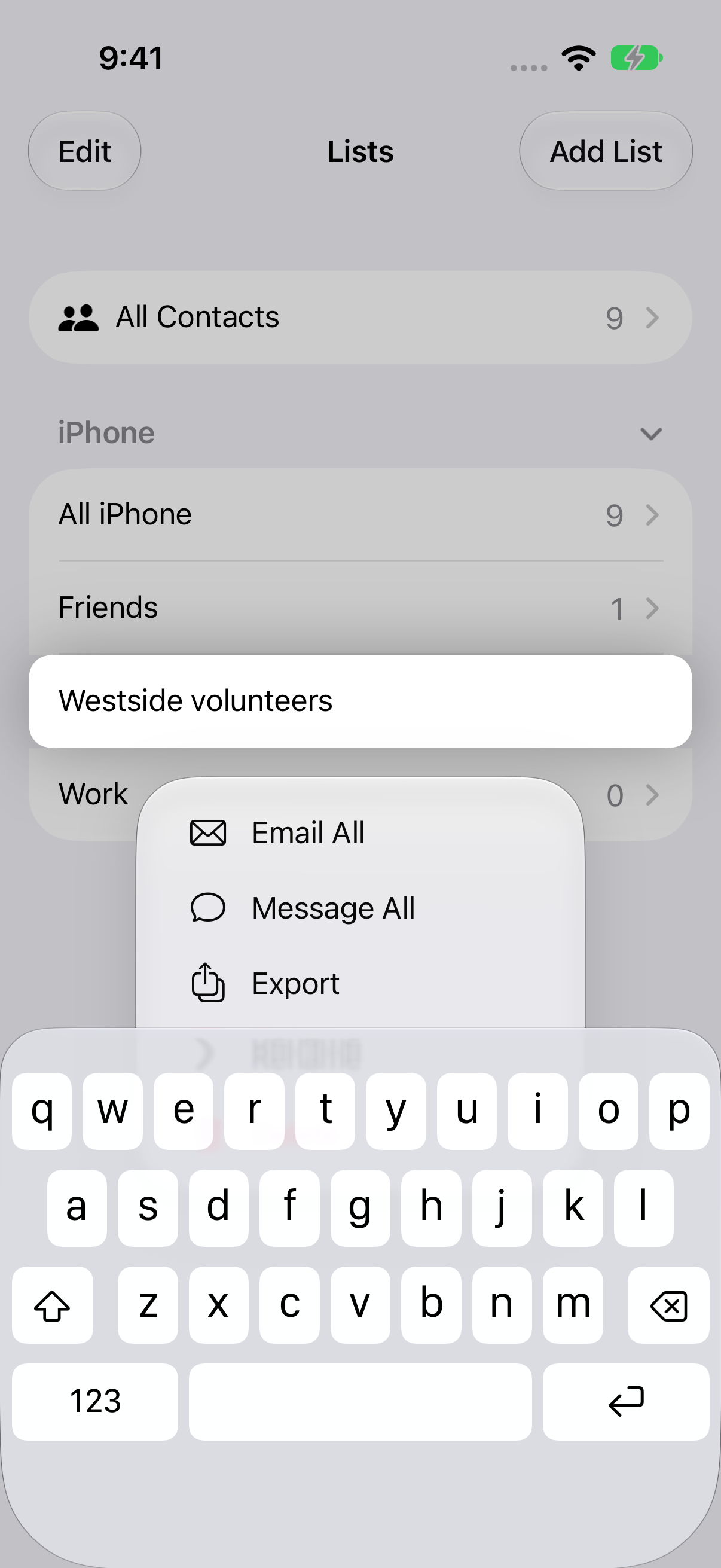
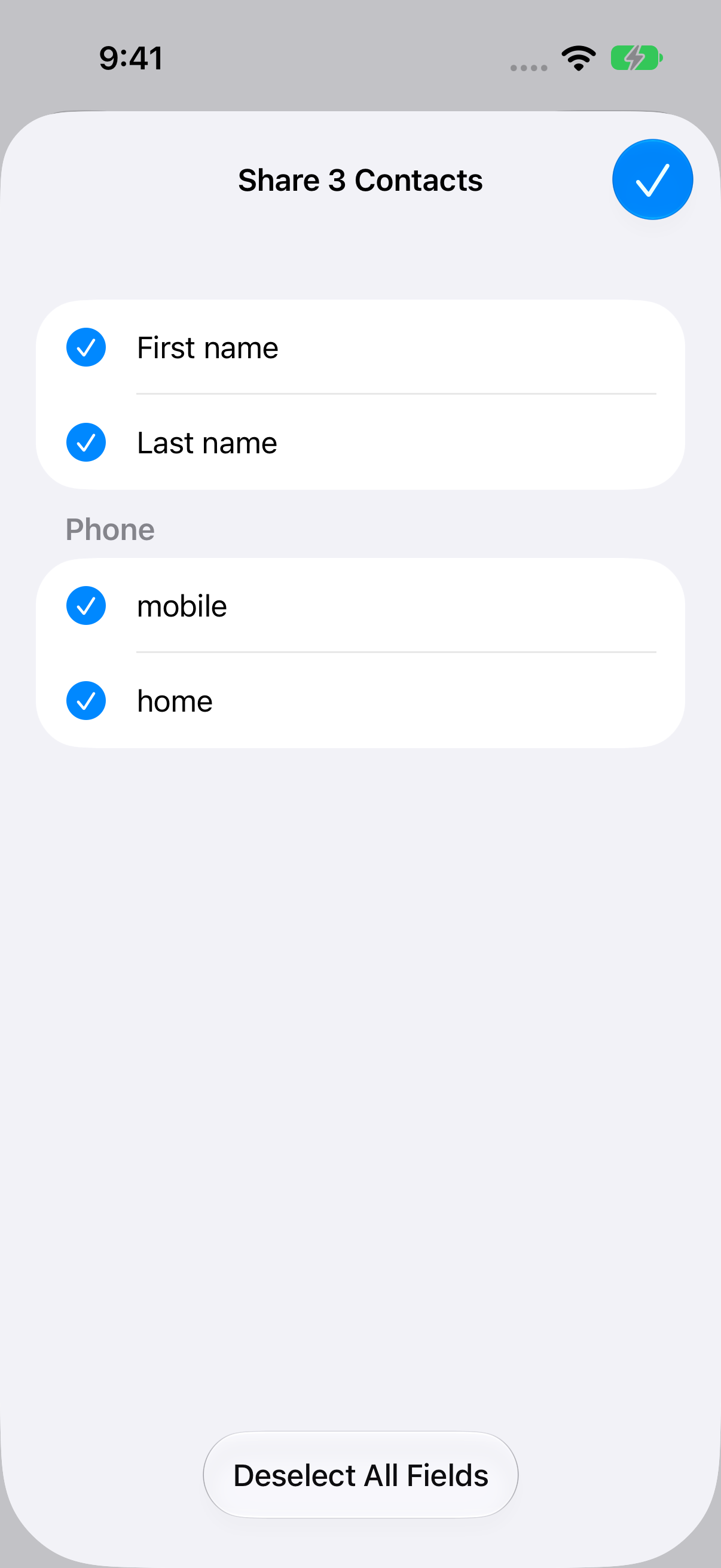
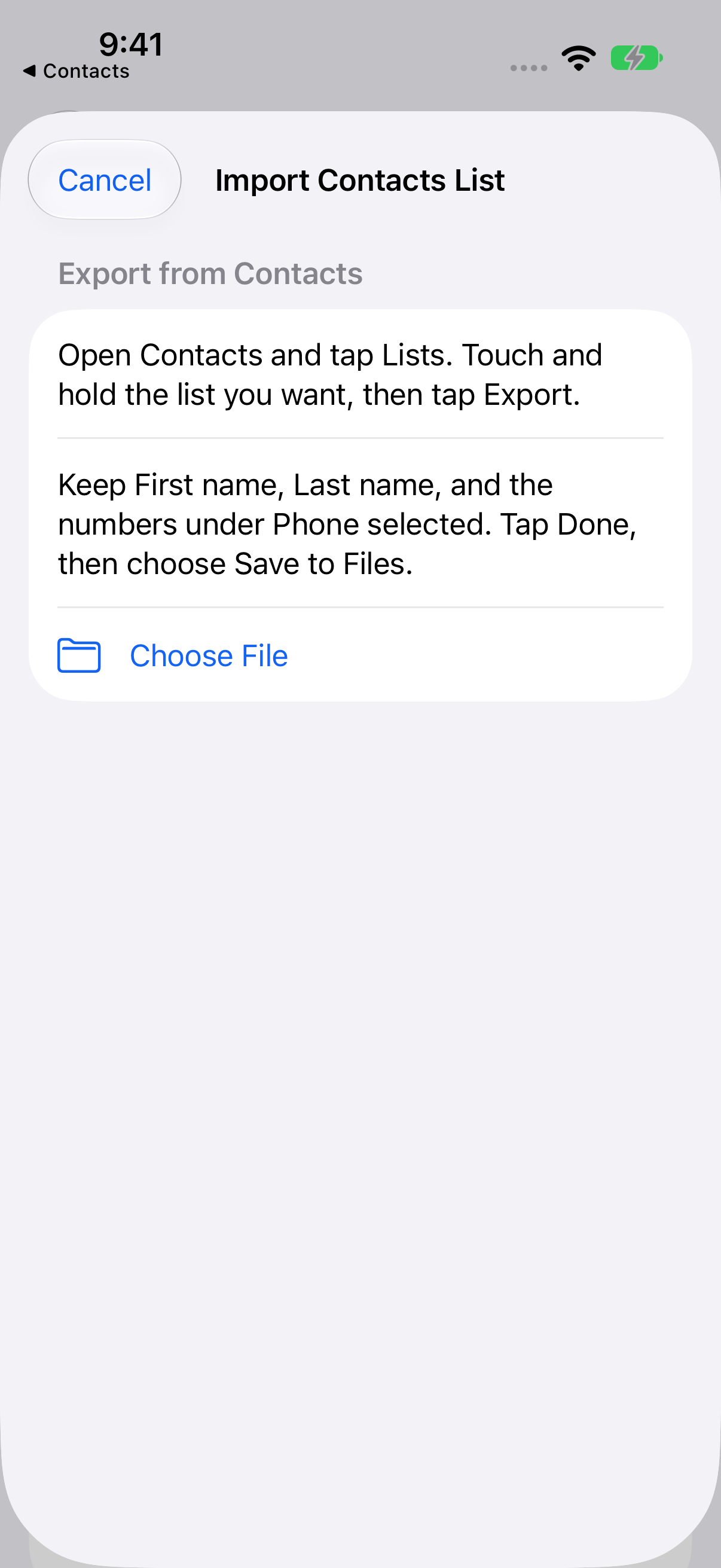
Open Apple’s Contacts app and tap Lists. Touch and hold the list you want, then tap Export. Keep First name, Last name, and the numbers under Phone selected. Tap Done (the blue checkmark on newer versions of iOS) to open the share sheet. Apple’s guide to exporting contacts
2. Share to TextEach and create a group
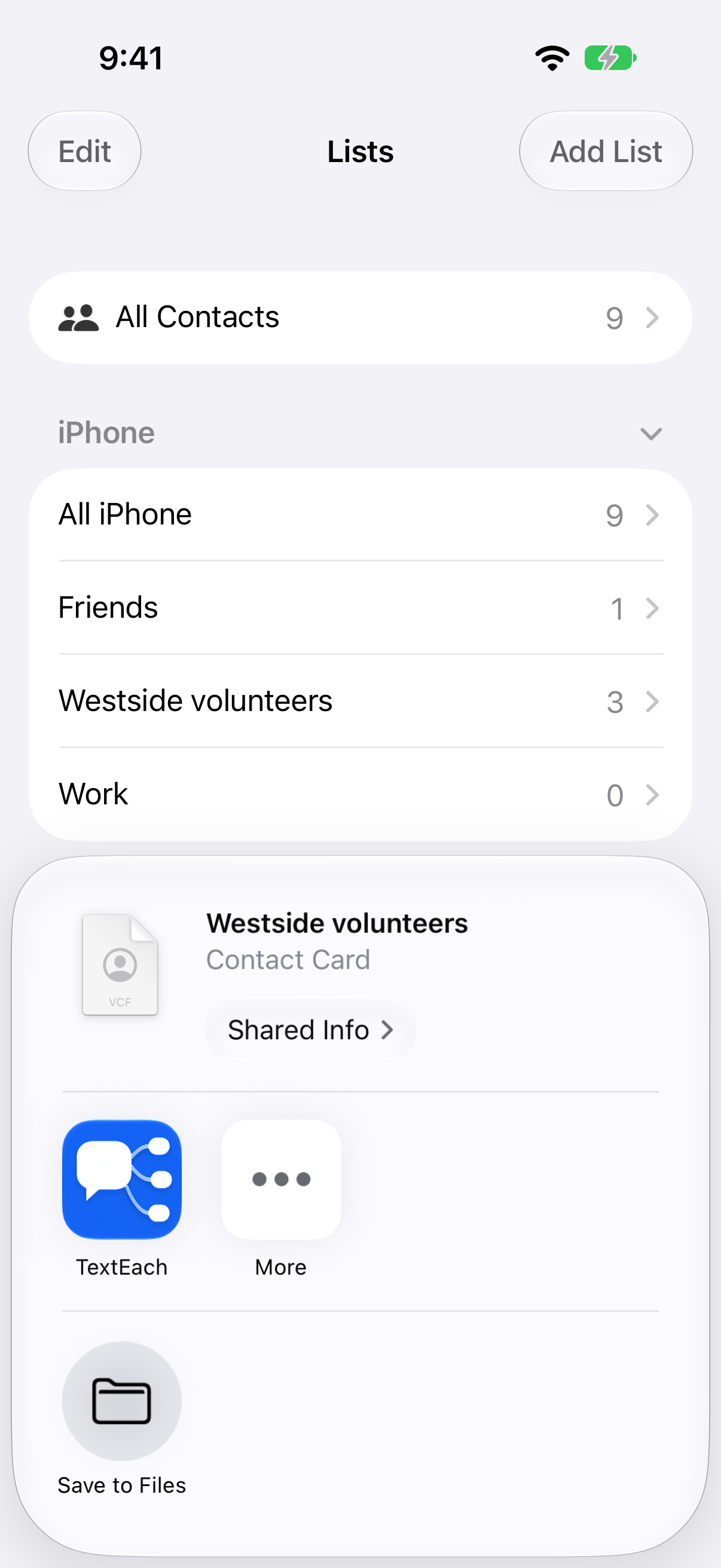
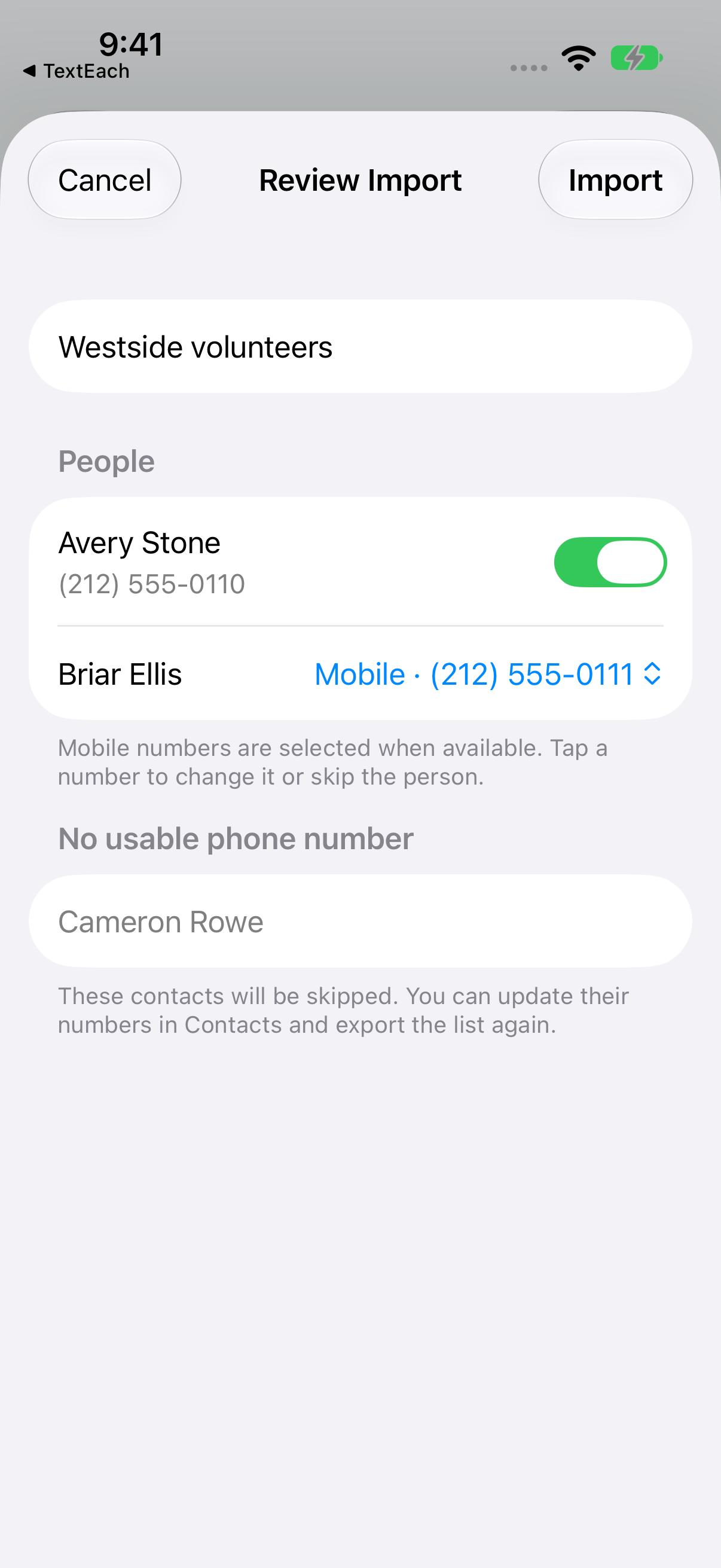
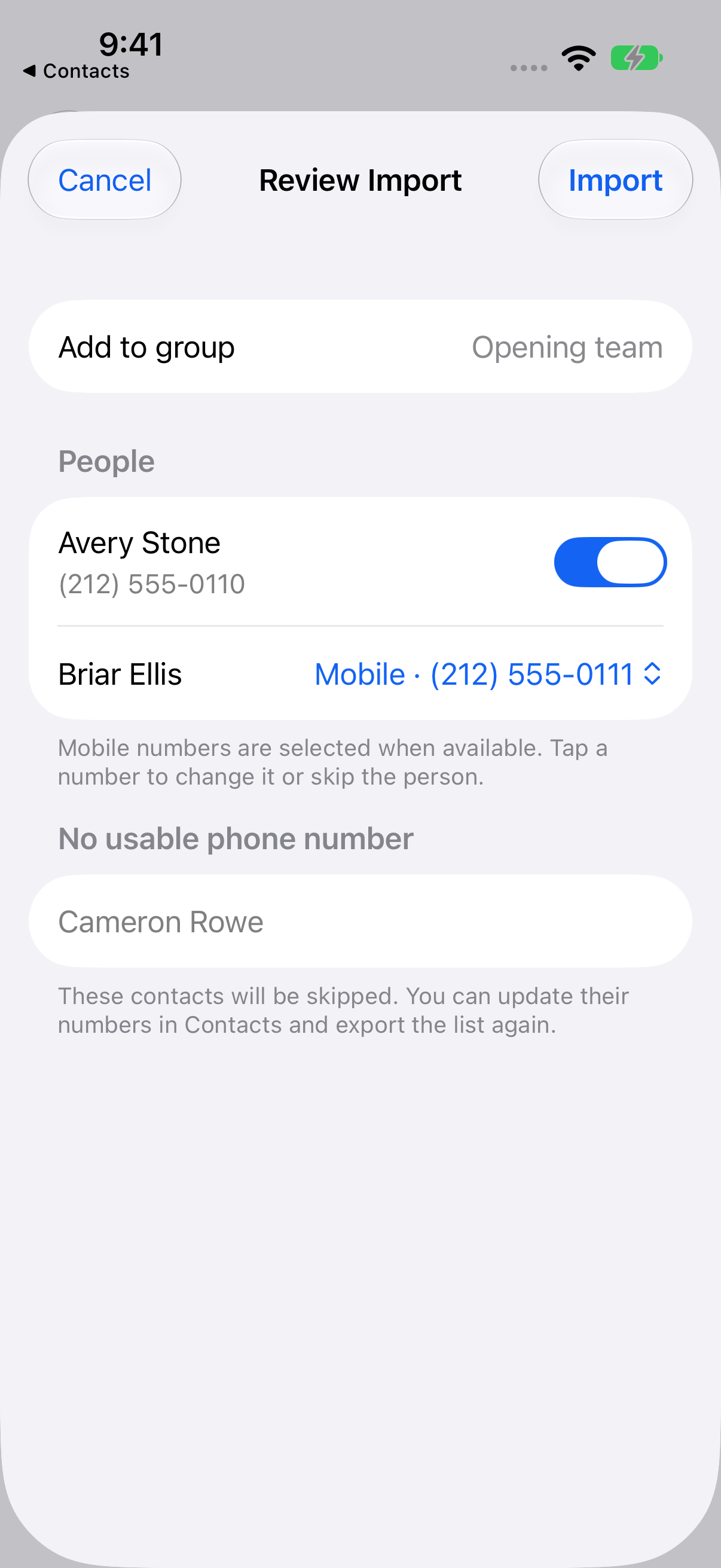
Tap the TextEach icon in the share sheet’s app row. Swipe left to More if the icon is off screen. TextEach opens Review Import in Contacts. Check the proposed group name and each person’s number. Tap Import, then Done, and open TextEach to find the new group.
3. Use Files to add a list to an existing group
Use the Files route to add the list to a group you choose. Create the group first if you need a new one.
- In the Contacts share sheet, choose Save to Files and save the .vcf file.
- In TextEach, open the destination group. Tap Add people → From a Contacts list.
- Tap Choose File. Select the VCF file from Recents, or use Browse to find the folder where you saved it.
- Review the contacts and tap Import.
How TextEach chooses numbers
For a contact with several numbers, TextEach starts with a number labeled mobile or iPhone when available. Otherwise it prefers main or the first regular number. Tap the person’s row to choose a different number or skip them. Contacts without a usable number are listed as skipped.
When a number already exists in TextEach, the import uses that saved person. An import is a one-time copy. Later edits in Apple Contacts don’t sync to the TextEach group.
Still stuck? Contact TextEach Support.