 TextEach
Write a message now and have TextEach send it later, or remind you when it’s time. Schedules can repeat.
1. Open Schedule from Review
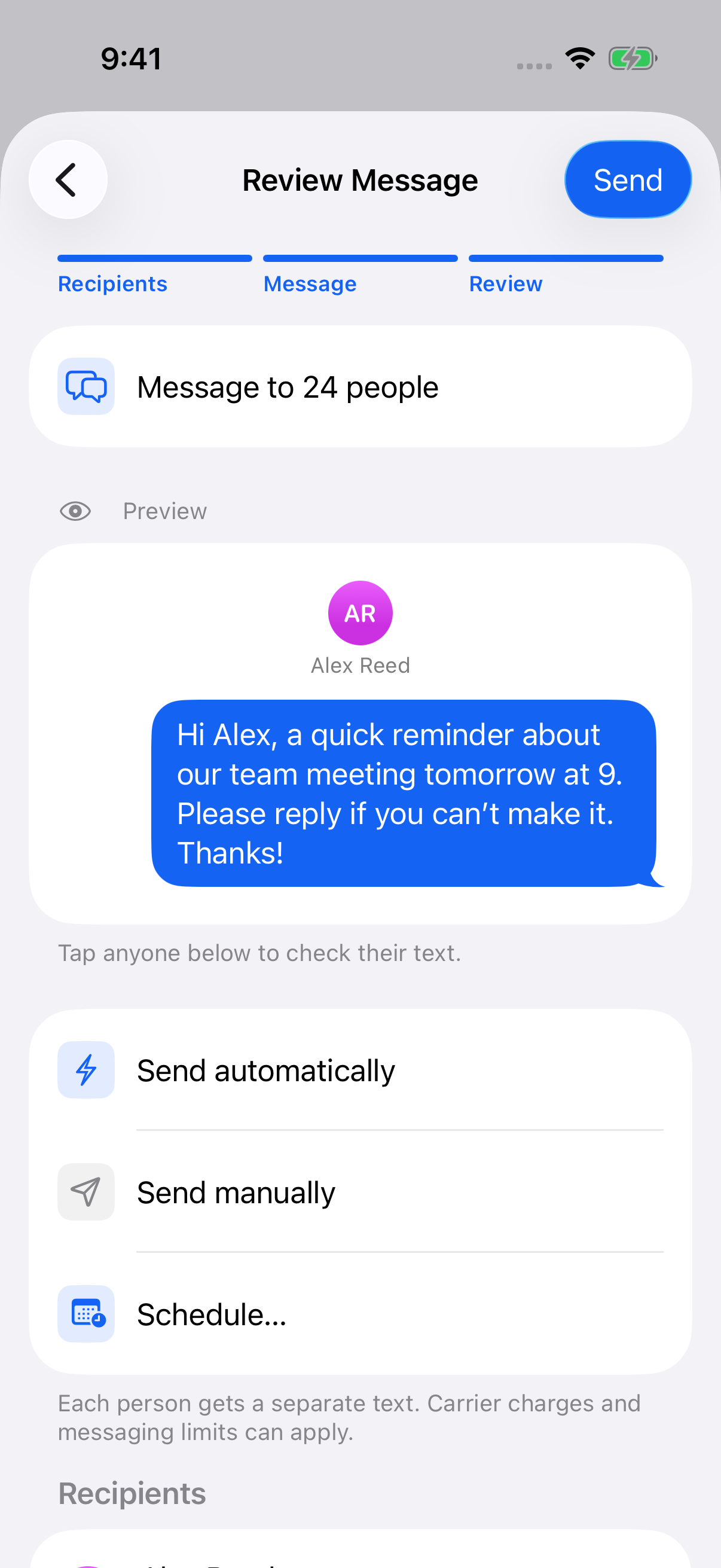
Write your message and tap Review. Check each person’s text, then tap Schedule… on Review Message.
2. Pick a date, time, and repeat
On Schedule Message, set the Date and Time. To send it more than once, choose a Repeat: daily, weekly, every two weeks, monthly, quarterly, or yearly.
3. Choose how it sends
Tap Sending options and choose one:
- Automatically: With TextEach Pro, TextEach sends each text for you through Apple Shortcuts. Set up automatic sending first.
- Remind me: you get a notification when it’s time, then send it yourself. One-time and repeating reminders are free for your whole group.
Tap Save.
4. Make sure it will run
- iOS 27 or later: keep TextEach notifications on. They start each scheduled send.
- iOS 26 or earlier: in Shortcuts, go to Automation and add Time of Day → Run Immediately → TextEach, set to the same time as your schedule. Saving a schedule in TextEach doesn’t create this for you.
Before your first scheduled text, send one message now with your iPhone unlocked and tap Always Allow when asked. iOS decides exactly when shortcuts run, so timing can vary a little.
Change, skip, or pause a schedule
Open Messages → Scheduled and tap the message. From Schedule Details you can:
- Tap Edit schedule… or Edit message… to make changes. Editing pauses the schedule until you review it.
- Tap Skip next occurrence or Snooze next occurrence… to skip or delay one repeat.
- Pause the schedule, or resume it with Resume schedule.
A schedule doesn’t pick up people you add to the group later. To include them, tap Review current group membership, then save the schedule again.
Didn’t send? See My scheduled message didn’t send.
Still stuck? Contact TextEach Support.